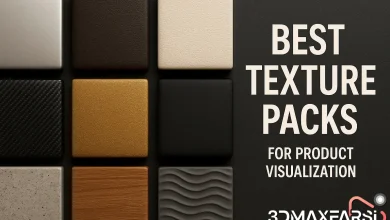
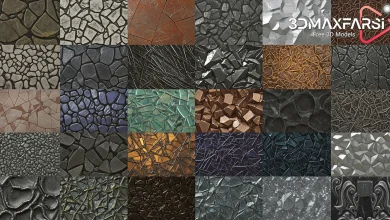
Comprehensive collection of photorealistic textures
Best Free & Paid Material Libraries for Photorealistic Textures (2024 Guide) 🎨
Whether you’re a 3D artist, game developer, or architect, having access to high-quality, photorealistic textures can make or break your project. But where do you find them? 🤔
In this guide, we’ll break down the best free and paid material libraries, focusing on comprehensive collections of photorealistic textures. We’ll also answer common questions and compare options so you can pick the perfect resource for your workflow.
Why Do You Need a Good Material Library? 🔍
Before diving into the best sources, let’s understand why a solid texture library matters:
✅ Saves Time – No need to create textures from scratch.
✅ Improves Realism – High-res textures make renders look lifelike.
✅ Consistency – Professional libraries ensure uniform quality.
✅ Supports Multiple Software – Most libraries work with Blender, Unreal Engine, Substance, and more.
Best Free Material Libraries for Photorealistic Textures
If you’re on a budget, these free resources are gold mines:
| Library | Highlights | Best For |
|---|---|---|
| Texture Haven (texturehaven.com) | 100% free, 8K textures, CC0 license | Archviz, Game Dev |
| Poliigon Free Textures (poliigon.com) | High-quality free samples from Poliigon’s premium collection | Product Renders |
| AmbientCG (ambientcg.com) | PBR textures, seamless, multiple resolutions | VFX, 3D Art |
| CC0 Textures (cc0textures.com) | Photorealistic, no copyright restrictions | Indie Projects |
| NASA 3D Resources (nasa.gov) | Real-world space textures (yes, really! �) | Sci-Fi, Space Renders |
Pros of Free Libraries:
✔ No cost
✔ Great for learning & small projects
✔ Often come with PBR maps (Albedo, Normal, Roughness, etc.)
Cons of Free Libraries:
❌ Limited variety compared to paid options
❌ May lack niche textures (e.g., specific fabrics, metals)
Best Paid Material Libraries (Worth Every Penny) 💰
If you need ultra-high-quality, specialized textures, these paid libraries are unbeatable:
| Library | Price | Why It’s Worth It |
|---|---|---|
| Poliigon | $15–$99/month | Industry-standard, 8K–16K textures, smart materials |
| Quixel Megascans | Free (with Unreal) or $19/month | Scanned real-world assets, massive library |
| Substance Source | $19.90/month | 10K+ materials, procedural & photorealistic |
| TextureXYZ | $15–$30/month | High-res skin & facial textures for VFX |
| Arroway Textures | One-time purchase (€50–€300) | Ultra-detailed architectural textures |
Pros of Paid Libraries:
✔ Highest quality (scanned from real surfaces)
✔ Massive variety (wood, concrete, fabric, metals, etc.)
✔ Seamless & tileable (no visible repeats)
✔ Regular updates with new textures
Cons of Paid Libraries:
❌ Can be expensive for hobbyists
❌ Some require subscriptions
Photorealistic Textures: Common Questions Answered ❓
1. What’s the difference between PBR and non-PBR textures?
- PBR (Physically Based Rendering) textures include multiple maps (Albedo, Normal, Roughness, etc.) for ultra-realism.
- Non-PBR textures are simpler, often just a diffuse color map.
2. Are free textures good enough for professional work?
✅ Yes, but with limits – Free textures work for indie projects, but paid ones offer better consistency and resolution for commercial work.
3. Can I use these textures in Blender/Unreal Engine/Substance Painter?
✔ Yes! Most libraries provide formats compatible with major 3D software.
4. How do I make textures look more realistic?
- Use PBR textures with proper lighting.
- Add imperfections (scratches, dust, wear).
- Adjust roughness & specular maps for natural variation.
Final Verdict: Which One Should You Choose? 🏆
| Scenario | Best Pick |
|---|---|
| Hobbyist / Student | Texture Haven + AmbientCG (Free) |
| Indie Game Developer | Quixel Megascans (Free with Unreal) |
| Architect / Product Designer | Poliigon or Arroway Textures |
| VFX / Film Artist | Substance Source or TextureXYZ |
Wrapping Up 🎬
Whether you go free or paid, having a solid photorealistic texture library will level up your 3D work. Start with free options if you’re learning, then invest in premium textures when you need next-level detail.
Got a favorite texture library we missed? Drop it in the comments! 👇
Advanced Tips for Using Photorealistic Textures Like a Pro 🚀
Now that you’ve got your hands on some amazing texture libraries, let’s make sure you’re using them to their full potential. Here’s how the pros get the most out of their materials!
1. Optimizing Textures for Different Use Cases 🛠️
Not all textures work the same way in every project. Here’s how to pick the right ones:
| Use Case | Recommended Texture Type | Why? |
|---|---|---|
| Game Development | 4K PBR, Tileable | Balances quality & performance |
| Architectural Viz | 8K+ Seamless, High-Res | Needs crisp details for close-ups |
| Product Rendering | 16K, Imperfection Maps | Highlights fine details like scratches |
| Animation/VFX | UDIM or Multi-Tile Textures | Allows for complex surface detailing |
Pro Tip: If you’re working in Unreal Engine 5, use Nanite for ultra-high-res textures without killing performance.
2. How to Avoid the “Tiling Effect” (When Textures Repeat Too Obviously) 🔄
Ever noticed a repeating pattern that ruins realism? Here’s how to fix it:
✔ Use Texture Variation – Mix 2-3 similar textures to break repetition.
✔ Add Decals – Scratches, dirt, or grunge overlays hide seams.
✔ Adjust UV Mapping – Scale/rotate UVs to make repeats less obvious.
✔ Use Substance Painter/Designer – Procedural textures reduce tiling artifacts.
Free Tool Alert: Materialize (boundingboxsoftware.com) lets you generate normal/roughness maps from a single image, helping reduce tiling issues.
3. Best Software for Applying & Editing Textures 💻
Different tools excel at different things:
| Software | Best For | Texture Compatibility |
|---|---|---|
| Substance Painter | Hand-painted details, wear & tear | .sbsar, .tif, .png |
| Blender (Shading Nodes) | Procedural texturing, customization | .jpg, .exr, .hdr |
| Quixel Mixer | Quick material mixing, Megascans integration | .tif, .png |
| Marmoset Toolbag | Real-time material previews | .psd, .tga |
Hot Take: If you’re in Blender, check out the Materialiq add-on—it gives you 1,000+ ready-to-use PBR materials inside Blender!
4. How to Make Custom Textures from Scratch (When You Can’t Find the Perfect One) 🎨
Sometimes, you need something super specific. Here’s how to DIY:
Option 1: Photogrammetry (For Ultra-Realism)
- Use RealityCapture or Meshroom to scan real-world surfaces.
- Best for organic textures (rocks, bark, concrete).
Option 2: AI Texture Generation (Fast & Experimental)
- Tools like Adobe Firefly or NVIDIA Canvas can generate textures from text prompts.
- Great for concept art but may lack fine details.
Option 3: Hybrid Approach (Mix & Match)
- Take a free texture, tweak it in Photoshop/GIMP, then enhance with Substance Designer.
Pro Tip: If you’re photographing textures yourself, shoot in RAW format and use polarized lighting to avoid reflections.
5. Common Mistakes to Avoid When Using Textures ❌
🚫 Using Low-Res Textures for Close-Ups → Always check your camera distance!
🚫 Ignoring PBR Workflow → Without proper roughness/metallic maps, materials look fake.
🚫 Overusing Bump/Normal Maps → Can make surfaces look unnaturally bumpy.
🚫 Forgetting Lighting → Even the best texture looks bad under flat lighting.
Fix: Always test textures in different lighting conditions before finalizing.
Final Checklist Before Using a Texture ✅
Before slapping a texture onto your model, ask:
✔ Is it seamless? (If not, can I make it tileable?)
✔ Does it have PBR maps? (Albedo, Normal, Roughness, etc.)
✔ Is the resolution high enough? (8K for close-ups, 4K for games)
✔ Does it fit my art style? (Photorealistic vs. Stylized)
What’s Next? Level Up Your Texture Game! 🔥
If you’ve mastered textures, try these next-level techniques:
🔥 Procedural Materials (Substance Designer)
🔥 Dynamic Weather Effects (Wetness, Snow Accumulation)
🔥 AI-Assisted Texture Upscaling (Topaz Gigapixel)
Your Turn! 🎤
What’s your go-to texture trick? Struggling with a specific material? Drop a comment below—let’s troubleshoot together!