High-resolution 3D textures for material creation
Premium PBR Textures for Rendering: Elevate Your 3D Material Game! 🎨✨
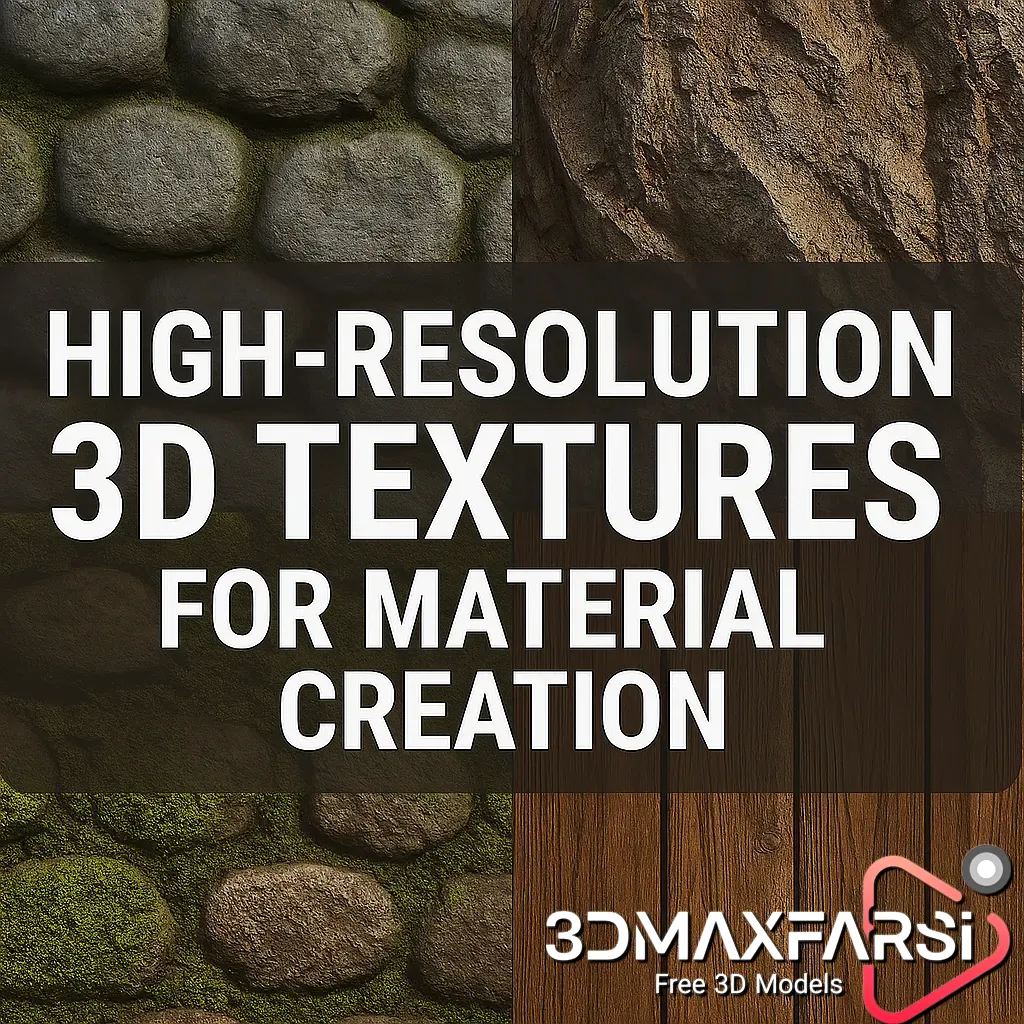
If you’re into 3D modeling, game design, or architectural visualization, you know that high-quality textures can make or break your renders. That’s where Premium PBR (Physically Based Rendering) textures come in! These bad boys bring realism, depth, and that chef’s kiss level of detail to your projects.
But what makes them so special? And how do you choose the best ones? Let’s break it down!
Why Premium PBR Textures? 🤔
PBR textures simulate real-world materials by following physics-based lighting rules, making them ultra-realistic. Here’s why they’re a game-changer:
✅ Consistent lighting behavior – Works under any lighting condition.
✅ High resolution – Crisp details even when zoomed in.
✅ Seamless tiling – No ugly repeating patterns.
✅ Multiple maps included – Albedo, roughness, metallic, normal, AO, and more!
PBR vs. Traditional Textures: A Quick Comparison
| Feature | PBR Textures | Traditional Textures |
|---|---|---|
| Realism | � Physically accurate | 🎨 Artistic approximation |
| Lighting Response | 🌟 Consistent in all lighting | 🔦 Varies with lighting |
| Workflow | 🛠️ Standardized (metal/roughness) | 🎭 Custom shading needed |
| Best For | 🎮 Games, VFX, Archviz | 🖌️ Stylized projects |
High-Resolution 3D Textures for Material Creation 🖼️
When we talk about high-res textures, we mean 4K, 8K, or even 16K resolution files. These are crucial for:
- Close-up shots (no blurry mess!)
- AAA game assets (next-gen visuals)
- Product visualization (hyper-realistic materials)
Common High-Res Texture Types
| Texture Type | Purpose | Example Use |
|---|---|---|
| Albedo (Diffuse) | Base color | Wood, fabric, metal |
| Normal Map | Simulates surface bumps | Brick, scratches |
| Roughness Map | Controls shininess | Polished vs. matte surfaces |
| Metallic Map | Defines metal/non-metal | Gold, steel, plastic |
| Ambient Occlusion (AO) | Adds depth in crevices | Cracks, corners |
Where to Use Premium PBR Textures? 🏗️🎮
These textures aren’t just for games—they’re everywhere!
- Game Development (Unreal Engine, Unity)
- Architectural Visualization (Realistic bricks, tiles, metals)
- Product Design (Shiny car paint, leather seats)
- VFX & Animation (Movie-grade materials)
Top Software That Supports PBR Textures
| Software | Best For | PBR Workflow |
|---|---|---|
| Blender | Free & powerful | Node-based shading |
| Substance Painter | Texture painting | Real-time PBR preview |
| Marmoset Toolbag | Rendering & baking | Fast material tweaking |
| Unreal Engine | Real-time rendering | Direct PBR import |
FAQs About Premium PBR Textures ❓
1. Are free PBR textures good enough?
Some are decent, but premium packs offer higher resolution, better variety, and consistent quality. Free ones often lack proper maps or have compression issues.
2. What resolution should I use?
- 4K – Great for most projects.
- 8K+ – Needed for cinematic close-ups.
- 2K or lower – Okay for background assets.
3. How do I avoid tiling repetition?
Use variation masks or mix multiple textures to break patterns.
4. Can I use PBR textures in any 3D software?
Yes! Most modern 3D tools (Blender, Maya, UE5) support PBR workflows.
Final Thoughts: Level Up Your Renders! 🚀
If you want hyper-realistic materials, investing in premium PBR textures is a no-brainer. They save time, boost quality, and make your work stand out. Whether you’re crafting a game, designing a product, or rendering an architectural masterpiece—high-res 3D textures are your secret weapon!
🔥 Pro Tip: Check out texture libraries like Poliigon, Texture Haven, or Quixel Megascans for top-tier PBR assets!
Bonus Tips & Advanced Tricks for Using PBR Textures Like a Pro! 🧙♂️🔥
Now that you know the basics of Premium PBR Textures, let’s dive into some next-level techniques to make your materials pop even more!
1. Mixing & Blending Textures for Unique Materials 🎨
Why settle for one texture when you can combine them for something truly custom?
How to Blend Textures Like a Boss:
- Use masks (black & white maps) to control where textures mix.
- Layer grunge/dirt maps for extra realism.
- Blend roughness values to simulate wear & tear.
Example: Mixing concrete + moss textures for an abandoned wall effect.
💡 Pro Tip: In Substance Painter, use Smart Masks to auto-generate wear patterns!
2. Optimizing Textures for Real-Time Rendering (Games & VR) 🎮
High-res textures look amazing, but they can murder performance if not optimized. Here’s how to balance quality & speed:
| Optimization Trick | Why It Helps |
|---|---|
| Use Mipmaps | Reduces texture load at a distance |
| Compress Textures (BC7/DXT5) | Saves VRAM without major quality loss |
| Trim Unused Maps | Skip AO if you’re baking lighting |
| Use Texture Atlases | Combine multiple textures into one sheet |
Best Format for Games:
- PNG/TGA (Lossless, but large)
- BC7/DDS (Compressed, GPU-friendly)
3. Creating Custom PBR Textures from Scratch 🖌️
Sometimes, off-the-shelf textures aren’t enough. Here’s how to make your own:
DIY Texture Creation Methods:
| Method | Best For | Tools Needed |
|---|---|---|
| Photogrammetry | Ultra-realistic scans | RealityCapture, Meshroom |
| Procedural Generation | Infinite variations | Substance Designer, Houdini |
| Hand-Painting | Stylized textures | Photoshop, Substance Painter |
Example Workflow:
- Take high-res photos of real surfaces.
- Convert them into seamless textures (using Photoshop or Materialize).
- Generate normal/roughness maps for PBR use.
🚀 Advanced Trick: Use AI tools (like NVIDIA’s GauGAN) to generate base textures!
4. Troubleshooting Common PBR Texture Issues 🛠️
Even pros run into problems—here’s how to fix them!
Problem: My Textures Look Flat
✅ Solution:
- Check if normal maps are properly imported.
- Ensure roughness/metallic values are correct.
Problem: Texture Tiling is Obvious
✅ Solution:
- Use triplanar mapping (instead of UVs).
- Add decals/detail layers to break repetition.
Problem: Textures Are Too Big (Slow Performance)
✅ Solution:
- Downscale to 2K or 4K (unless ultra-close-ups).
- Use texture streaming in Unreal/Unity.
5. Future of PBR Textures: What’s Next? 🔮
The world of 3D materials is evolving fast! Here’s what’s coming:
- AI-Generated Textures (Instant material creation)
- Nanite-like Microdetails (No more baking needed)
- Real-Time Material Editing (Cloud-based workflows)
Want to stay ahead? Keep an eye on:
- Quixel’s AI tools
- Unreal Engine 5’s Nanite updates
- Substance 3D’s cloud features
Final Verdict: Should You Use Premium PBR Textures? 🤔
✅ YES if…
- You need top-tier realism.
- You’re working on professional projects.
- You value time (no more tweaking basic textures).
❌ Maybe not if…
- You’re doing low-poly/stylized art.
- You’re on a tight budget (free packs can work).
Where to Get the BEST PBR Textures? 🌎
Here are the top sources for high-quality textures:
| Website | Best For | Pricing |
|---|---|---|
| Poliigon | Ultra-realistic scans | Paid (Premium) |
| Texture Haven | Free high-res PBR | Free (CC0) |
| Quixel Megascans | AAA-grade assets | Free (with Unreal) |
| Substance Source | Procedural materials | Subscription |
Got More Questions? Ask Away! 👇💬
PBR textures can be tricky, but once you master them, your 3D art will never look the same. If you’re stuck or just curious about something, drop a comment—we’ll help you out!

![[Free] Maxtree – Plant Models Vol. 56](https://3dmaxfarsi.com/wp-content/uploads/2025/07/maxtree-plant-models-vol-056.1-390x220.webp "[Free] Maxtree – Plant Models Vol. 56 2")