How to Download Adobe Connect Enterprise 11 + Client (And Why It’s Still a Power Move) 🚀

Let’s be real for a second. I’ve been in the virtual meeting game for over a decade, and I’ve seen trends come and go like fashion. Zoom fatigue hit hard, Teams feels like a corporate maze, and Google Meet is… well, simple. But when I need to run a serious, locked-down webinar or a persistent virtual classroom, I always find myself coming back to one juggernaut: Adobe Connect.
If you’re hunting for the Adobe Connect Enterprise 11 download, you’re probably not looking for the fluffy, “quick catch-up” tool. You need the big guns. You’re setting up a fortress, not just a chat room. I remember setting up my first Connect room back in the day—it felt like walking into a professional broadcast studio compared to the pixelated messes we were used to.
But here’s the thing: finding the right installer, especially separating the Enterprise server from the Client application, can be a headache. Let’s cut through the noise. Grab your coffee ☕, and let’s get you set up properly.
Downloading Adobe Connect Enterprise 11: A Step-by-Step Guide 👣
Okay, let’s get to the part you came for. Where is the actual download link? Since Adobe transitioned to a subscription model, finding the offline installer for the Enterprise meeting client requires navigating their official distribution hubs. Don’t Google random .exe files—that’s a malware party waiting to happen 🛑.
Step 1: Accessing the Official Hosted Installer
The most universal and safe method to download the version 11 client is through the Adobe Connect Downloads Page. This isn’t always the flashy homepage; it’s the admin portal.
Pro Tip: If your organization has a hosted account (something like yourcompany.adobeconnect.com), simply add /common/help/en/support/downloads.html to the end of the URL.
For example: https://yourcompany.adobeconnect.com/common/help/en/support/downloads.html
Step 2: Selecting the Right Version for Your OS
Once on that page, Adobe smart-detects your OS, but don’t let it auto-pilot if you’re on a weird machine.
Windows Users: Ensure you grab the “Standard MSI” installer if you are an IT admin doing mass deployment, or just the standard Mac Users: You’re downloading a Linux Users: Yes, there’s a
.exe for personal rigs. Watch out for version 11.4.x specifically, as it fixed a major flickering bug on dual-monitor setups..dmg file. Crucial step: After mounting the disk image, you MUST drag the icon into the Applications folder. If you run it directly from the mounted drive, the screen sharing permissions will break spectacularly later. Ask me how I know. 🤦♂️.deb and .rpm option for Ubuntu and RHEL. The Linux client is lean and lacks some advanced drawing tools, but for stability in a classroom environment, it’s rock solid.
Step 3: The “Enterprise” Add-in for Browsers
If you prefer the browser experience but still need screen share controls, the page will prompt you to download the “Adobe Connect Add-in.” This is essentially a mini-client that plugs into Chrome or Edge. It’s not the full desktop app, but it gets the job done for quick meetings.
- file Format: .iso
- Compatibility: (Win)
- For : Client, Server
Adobe Connect Enterprise 11 + Client [Free download]
This content is free :)
Just Log in to 3dmaxfarsi 👇
What Exactly is Adobe Connect Enterprise 11? 🤔
Before we smash that download button, let’s clear up the jargon because Adobe’s naming convention confuses everyone. You aren’t downloading a single “AdobeConnectEnterprise11.exe” file that magically builds a server. It’s an ecosystem.
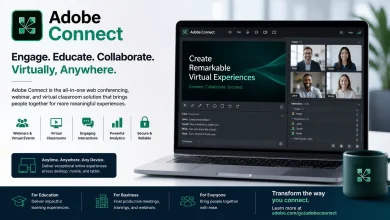
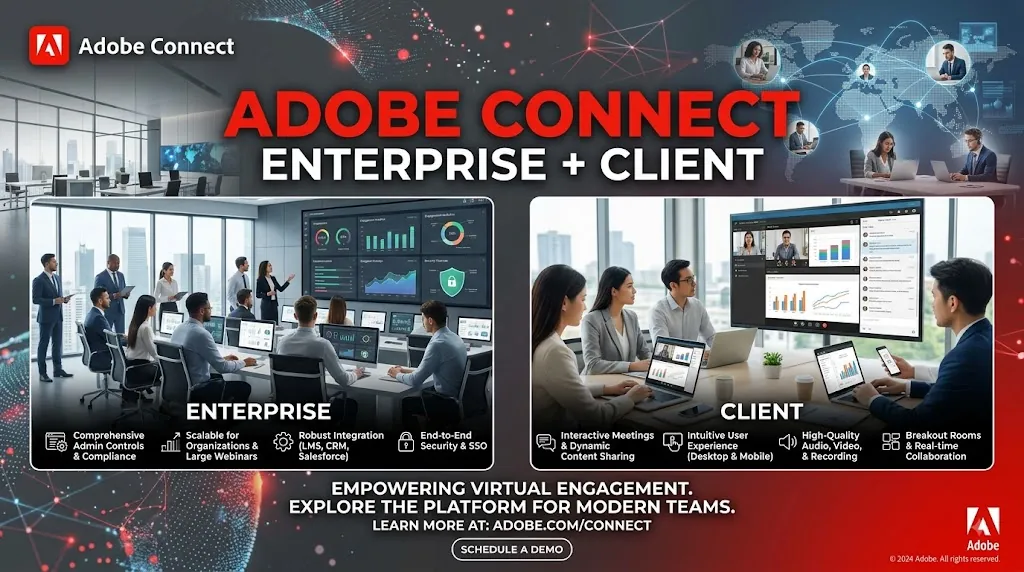
Adobe Connect Enterprise 11 is the server-side infrastructure. Unless you are an IT admin with a server room, you aren’t installing this on your laptop. You are subscribing to it, or your company hosts it on-premise. The actual thing you, the user, need on your machine is the Adobe Connect Client (Version 11).
The Client is the lightweight desktop application that connects you to the Enterprise server. Think of the server as the mothership 🛸 and the client as your personal docking station. You need the docking station to even see how cool the mothership is.
The “Aha!” Moment: Server vs. Client
I wasted three hours years ago trying to find a “full Enterprise installer” on my work laptop. Trust me, I felt like a noob. The flow is actually simple:
-
The Server: Installed by DevOps on a Windows Server or Linux machine.
-
The Client: Installed by you, right now, on your Windows or macOS machine.
-
The Bridge: The Client app bypasses browser limitations to give you screen sharing powers and smooth VoIP audio.
Why You Should Still Download Adobe Connect Client 11 in 2026 💡
With so many free tools, why bother downloading this specific client? Because of raw, unmatched power in specific niches. If you just need to say “Hi” to your grandma, use FaceTime. If you are training surgeons on a new medical device or selling a high-ticket B2B software with contract negotiations, you download the Connect Client.
Here is why this app is still the king of specialized communication:
True Persistent Rooms: Unlike Zoom or Teams where the room dies when the host leaves, Connect rooms are “always-on.” I once set up a project war room where the layout, documents, and sticky notes stayed exactly where we left them for three months straight. Magic. ✨ Breakout Rooms on Steroids: The ability to pre-assign users and have them automatically enter their specific breakout group based on registration data is a lifesaver for massive virtual summits. Custom Pods Overload: It’s not just a video grid. I’ve built rooms with live tickers, YouTube playlists that play in-sync, and a “Ask the Expert” lobby where you drag-attendees into a backstage area. The customizability is insane. CPU-Friendly VoIP: The audio codec is tuned for speaking, not music. In a terrible hotel WiFi scenario, Connect’s VoIP often stays crystal clear while other apps sound like robots underwater.
Adobe Connect 11 Client vs. Other Enterprise Giants 🥊
Why am I pushing you to download this 15MB client when other tools are just a browser click away? Let’s look at the cold, hard table of features. This isn’t about which has the prettiest virtual background; it’s about which tool functions like a digital conference center.
| Feature | Adobe Connect Client 11 | Zoom Client | Microsoft Teams |
|---|---|---|---|
| Room Persistence | 🟢 Full (Content, notes, layout persist forever) | 🔴 None (Room ends with host) | 🟡 Limited (Tab chats persist, but no visual layout) |
| Custom Layouts (Pods) | 🟢 Unlimited drag-and-drop modules | 🔴 Fixed grid layout | 🟡 Together Mode (Limited) |
| Backend Integration | 🟢 Massive (LDAP, SAML, SCIM, AICC/xAPI for LMS) | 🟡 Good (Mostly SAML) | 🟢 Native (Azure Active Directory) |
| On-Premise Server Option | 🟢 Yes (Fully air-gapped enterprise) | 🔴 Cloud-only | 🔴 Cloud-only |
| CPU Load (50+ Users) | 🟢 Low (Optimized VoIP focus) | 🔴 High (Video encoding heavy) | 🔴 High |
My Raw, Unfiltered Take on Using Connect Client Daily 😅
I need to be brutally honest here for a second. If your life revolves around emoji reactions and dancing filters, the Adobe Connect download will feel like stepping back into 2010. The UI is skeuomorphic, meaning the buttons look like real-life rubbery buttons. It’s not “modern” in the Silicon Valley sense.
But that’s the point. It’s software as a tool, not a social network. When I’m conducting a paid masterclass and I need to force everyone’s video layout to be identical so nobody misses the “raised hand” icon, Adobe Connect Client 11 does exactly that without a single glitch. The learning curve is steep for the first hour, then you realize you’re actually piloting a communication cockpit ✈️, not just a bike.
One Hidden Gem: The Test Wizard
Before you even join a meeting, the downloaded client has a diagnostic test wizard hidden in the Help menu. It checks your bandwidth, mic latency, and camera frame rate against the specific server you’re connecting to. If I had a dollar for every time this wizard fixed a CEO’s audio before a big keynote, I’d be writing this from a beach 🏖️. Use it!
Look, downloading the Adobe Connect Enterprise setup isn’t about chasing trends. It’s about reliability and command. In a world where meetings vanish into the ether, your persistent room stays like a digital HQ. If you host regulated training, federal contracts, or need an audit trail that would satisfy a lawyer, stop looking at the flashy new apps. Go to your organization’s URL, snag that Client v11, install it, and run the wizard.
Final Words: Is the Enterprise 11 Client Your Missing Piece?
The Bottom Line: Don’t let the slightly retro UI scare you. The Adobe Connect Enterprise 11 Client is the diesel engine of web conferencing—loud to start, maybe not the prettiest to look at, but it pulls more weight and lasts longer than any gas-powered alternative out there. Download the client, open a test room, and drag a few “pods” around. Give it 20 minutes. You’ll see why those of us with complex communication needs refuse to let it go. Happy hosting! 🎉