Blender – Quad Remesher v1.30 download
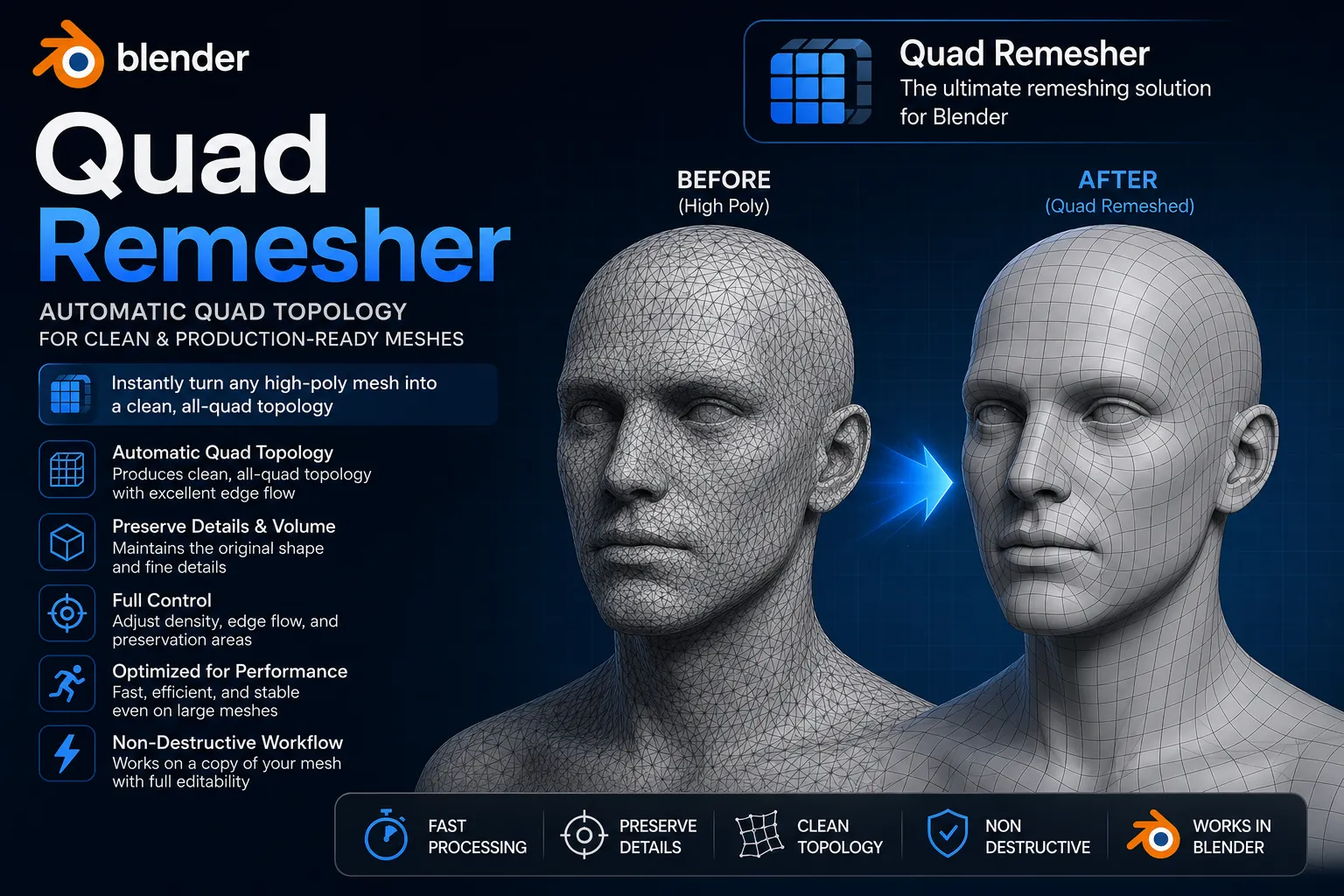
Download Blender Quad Remesher v1.30 – The Ultimate Auto Retopology Tool for 2026
Tired of spending hours cleaning up your messy 3D scans or high-poly sculpts? Bro, I’ve been there. You finish an awesome sculpt in Blender, and then comes the nightmare: retopology. It’s boring, it’s slow, and honestly, it kills the creative vibe. But what if I told you there is a magic button that does it all for you in seconds?
Let me introduce you to your new best friend: Quad Remesher v1.30. This is not just another Blender addon; it is a game-changer developed by the legendary Maxime Rouca, the same coding genius behind ZBrush’s famous ZRemesher. We are going to dive deep into why you need this, how to use it, and of course, how to get the free download Quad Remesher setup rolling right now. Let’s go! 🔥
🔗 Get the Download Link
It is time to upgrade your 3D modeling pipeline! Stop doing boring manual retopology and let the algorithm do the heavy lifting. Click the link below to get the latest version download started immediately.
Blender – Quad Remesher v1.30
This content is restricted to paid subscribers
🛠️ How to Install and Activate Quad Remesher v1.30
Getting this running on your machine is super easy. Since we are looking for the Blender Quad Remesher v1.30 download, here is the quick step-by-step guide to install it safely.
-
Download the Addon: First, grab the compressed file from the link below.
-
Open Blender: Go to
Edit>Preferences>Add-ons. -
Install: Click the
Installbutton at the top right, locate the downloaded.zipfile, and hitInstall Add-on. -
Activate: Search for “Quad Remesher” in the list and tick the little checkbox. You might see a pop-up; just follow the instructions to finalize the license registration (usually just a one-click thing).
-
You’re Done: Find it in the
Objectmenu or pressNin the viewport to see the Quad Remesher panel. 💪
What Exactly is Quad Remesher?
So, what is this magic tool? Simply put, Quad Remesher is an automatic quad remeshing (or auto retopology) algorithm. That sounds fancy, right? It basically means it takes your ugly, triangulated mess of a mesh and turns it into a beautiful, clean, all-quad topology in just a click.
The French software developer Exoside has finally released a perfectly optimized Blender add-on version of their flagship tool. Since Quad Remesher is based on the renowned ZRemesher in the ZBrush 3D sculpting suite, and comes from the same coder, Maxime Rouca, you know the quality is absolutely insane. It’s like having a little piece of ZBrush inside your Blender workflow. 🎨
🧐 Why is Good Topology Even Important?
Before we get into the download, let’s quickly chat about why you even need an auto retopology tool. Can’t you just use the decimate modifier? Nope!
A good mesh topology is absolutely crucial. It is beneficial to surface smoothness and editability. If your edge flow is garbage, your model will look bumpy and weird. Plus, good topology eases UV texturing and makes a mesh more suitable for rigging and animation. If you try to animate a character with bad topology, the limbs will deform like a crushed soda can. We don’t want that! 🥤
✨ Core Features That Make It Shine
Quad Remesher is capable of automatically retopologizing organic as well as hard-surface meshes. Seriously, whether you are doing a soft, squishy character or a sharp, mechanical robot, this addon handles it like a champ. The result features only quadrangular polygons, ready for subdivision or for use as a base mesh for sculpting more details.
Pure Quad Output: Absolutely zero triangles or ngons. Just clean quads ready for Subdivision Surface modifiers. Hard Surface & Organic Mastery: The algorithm is smart enough to detect sharp edges on a robot and curved surfaces on a creature simultaneously. Automatic Sharp Edge Detection: No need to manually mark seams everywhere; it figures out the angles for you. Vertex Paint Density Control: Want more polygons on the face but fewer on the back of the head? Just paint it! Quad Remesher offers a number of options to influence the result, such as using vertex paint to indicate varying polygon density. Material Boundary Preservation: It respects areas that have materials assigned to them, keeping your texture borders perfectly intact.
💡 The Perfect Workflow: How to Use It
So, how does this fit into your daily Blender grind? A typical workflow would be to use Quad Remesher to retopologize the major features of a mesh. You start with your high-poly sculpt.
First, you run the Exoside Quad Remesher to get a manageable, low-poly base mesh. Then, you add a Shrinkwrap and Subdivision modifier or a Multiresolution modifier to increase detail derived from the preserved source mesh. It is truly that simple. It takes the headache out of the technical stuff so you can get back to being an artist. 👨🎨
📊 Quad Remesher v1.30 vs. Blender Native Tools
Why should you download this instead of using Blender’s built-in remesh? Check out this quick comparison:
| Feature | Quad Remesher v1.30 | Blender Native Remesh |
|---|---|---|
| Topology Type | All Quad (Perfect loops) | Mostly Triangles/Voxels |
| Edge Flow Detection | AI-Driven, automatic sharp edge detection | Uniform/Voxel based (Messy flow) |
| Density Control | Vertex painting/Manual guides | Fixed resolution value only |
| Symmetry Handling | Flawless symmetry preservation | Often loses symmetry on complex shapes |
| Best Use Case | Final production-ready retopology | Concept block-outs or 3D printing |
We hope this helped you understand why this is a must-have tool. Now go on, download it, install it, and make some amazing, animation-ready art today! Peace out! ✌️

![[Free] Chaos Cosmos Browser [latest version]](https://3dmaxfarsi.com/wp-content/uploads/2025/10/chaos-cosmos-browser-download-390x220.webp "[Free] Chaos Cosmos Browser [latest version] 3")
![[Free] Chaos V-Ray 7 for Blender 5.1](https://3dmaxfarsi.com/wp-content/uploads/2023/09/chaos-vray-for-5.1-blender-390x220.webp "[Free] Chaos V-Ray 7 for Blender 5.1 4")