[Download] FloorGenerator v2.10 for 3ds Max – C4d
![[Download] FloorGenerator v2.10 for 3ds Max - C4d](https://3dmaxfarsi.com/wp-content/uploads/2023/09/3ds-max-plugin-floor-generator.webp "[Download] FloorGenerator v2.10 for 3ds Max - C4d 1")
FloorGenerator v2.10 & MultiTexture v2.04 for 3dsMax upto 2027
The FloorGenerator plugin is a popular tool used in SketchUp, a 3D modeling software. It is designed to help users quickly create floor plans, particularly for architectural and interior design projects. The plugin automates the process of generating floors, walls, and other structural elements, saving time and effort.
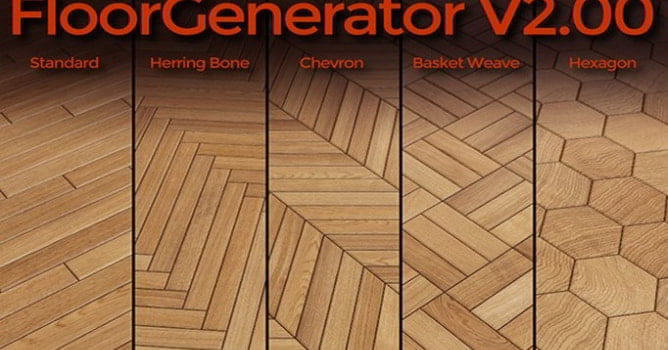
Of course, this script/plugin also has a FloorGenerator modifier for itself that you can apply to any closed 2D shape object or object and plane that is flat and 2D co-planar polygons. Just be careful. Its default settings are set to millimeters and you have to modify its scale later.
All the settings of this plugin can be saved as a separate file, Save/Load Presets, and can be recalled later if needed to speed up the process of your project. This plugin is a work of cg-source that you can do right now. Download it from 3dmaxFarsi.com.
Where to Get FloorGenerator?
The plugin is available through various SketchUp plugin marketplaces or directly from the developer’s website. It may be a paid plugin, so check for licensing details.
- Cinema 4D – Floor Generator 2
- FloorGenerator 2.10 Full for 3ds Max 2013-2026 Win x64
- MultiTexture_V2.04 for 3ds max 2012-2026
This content is restricted to paid subscribers
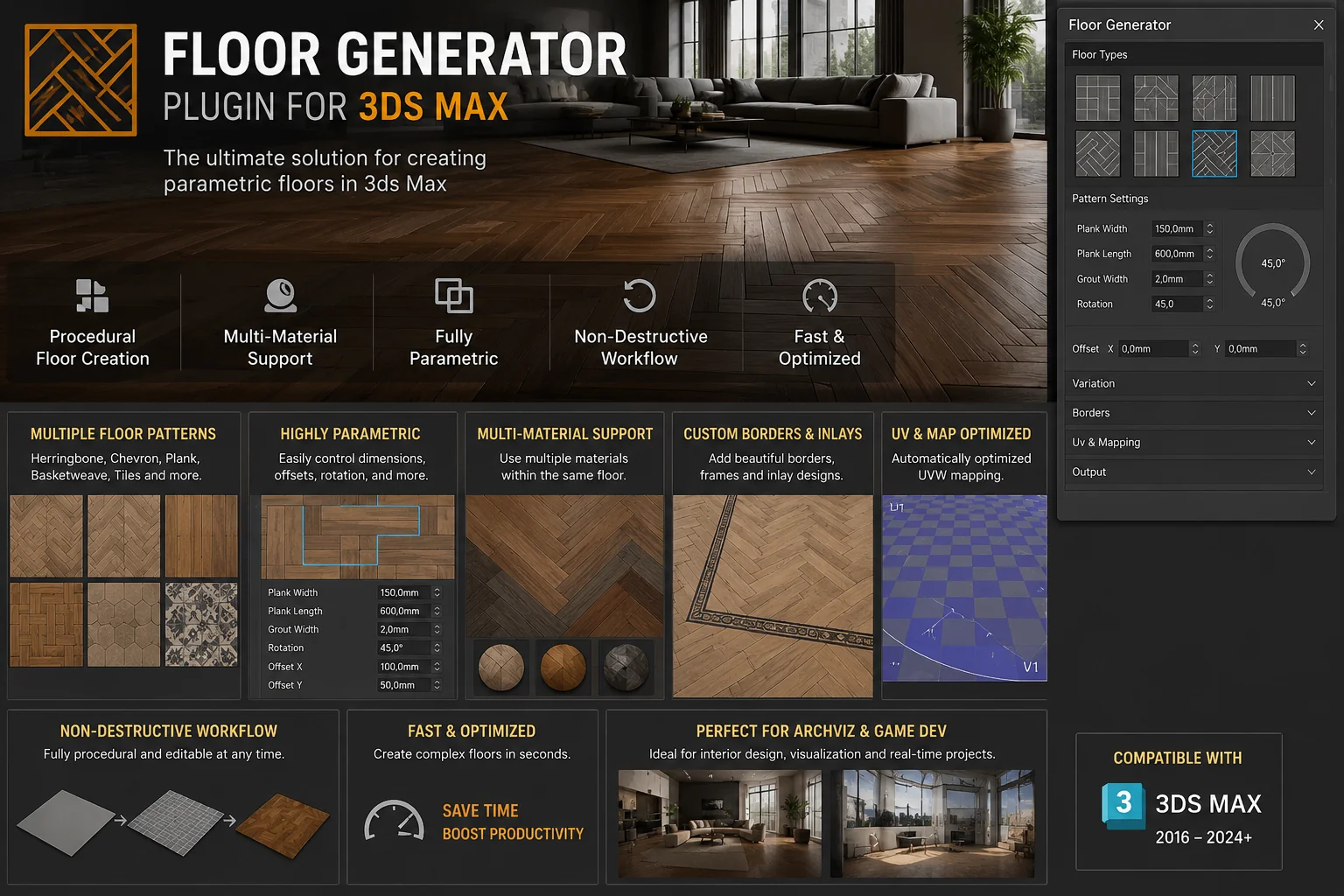
One of the most useful interior design plugins that I myself use is the Floor Generator plugin, which works parametrically and can be used to create a 3D texture on the floor or building area, etc.
On this page, download the latest version of FloorGenerator v2.10. In order to use it, you have to give this plugin a line or spline all around the desired surface, and automatically and of course controlled, all kinds of textures of parquet, wood, or tiles on the facade of the building, etc., according to the patterns it has inside, for You create!
Key Features of FloorGenerator:
Automatic Floor Plan Creation:
- Generates floor plans based on user-defined boundaries or shapes.
- Creates walls, floors, and other structural components with customizable thickness and height.
Customizable Parameters:
- Adjust wall thickness, floor thickness, and ceiling height.
- Define openings for doors and windows.
Layer Management:
- Automatically organizes generated elements into layers for better workflow management.
Support for Complex Shapes:
- Works with irregular or curved shapes, making it versatile for various design needs.
Integration with Other Plugins:
- Compatible with other SketchUp plugins, such as Fredo6’s tools or TT_Lib, for enhanced functionality.
Real-Time Updates:
- Allows users to modify the base shape or parameters, and the floor plan updates automatically.
How to Use FloorGenerator:
Install the Plugin:
- Download and install the FloorGenerator plugin (requires SketchUp Pro or a compatible version).
- Ensure you have the necessary libraries (e.g., TT_Lib) installed if required.
Draw the Base Shape:
- Use SketchUp’s drawing tools to create the outline of the floor plan.
Run the Plugin:
- Select the shape and activate the FloorGenerator tool from the plugin menu.
- Set parameters like wall thickness, floor height, and other options.
Generate the Floor Plan:
- Click “Generate” to create the floor plan. The plugin will automatically create walls, floors, and other elements.
Edit and Refine:
- Make adjustments to the base shape or parameters, and the plugin will update the floor plan in real time.
Applications:
- Architectural Design: Quickly create building layouts for presentations or construction documents.
- Interior Design: Generate room layouts for furniture placement and space planning.
- Renovation Projects: Visualize changes to existing structures.
Tips for Using FloorGenerator:
- Combine it with other plugins like JointPushPull or FredoScale for advanced modeling.
- Use layers and groups to keep your model organized.
- Experiment with different settings to achieve the desired level of detail.



![[Free] Chaos Envision 1.2.0.571824 Win x64](https://3dmaxfarsi.com/wp-content/uploads/2025/09/chaos-envision-390x220.webp "[Free] Chaos Envision 1.4.1 Win x64 6")