[Free] Red Giant Magic Bullet Suite
Red Giant Magic Bullet Suite 2023.2.1 Win x64 free download
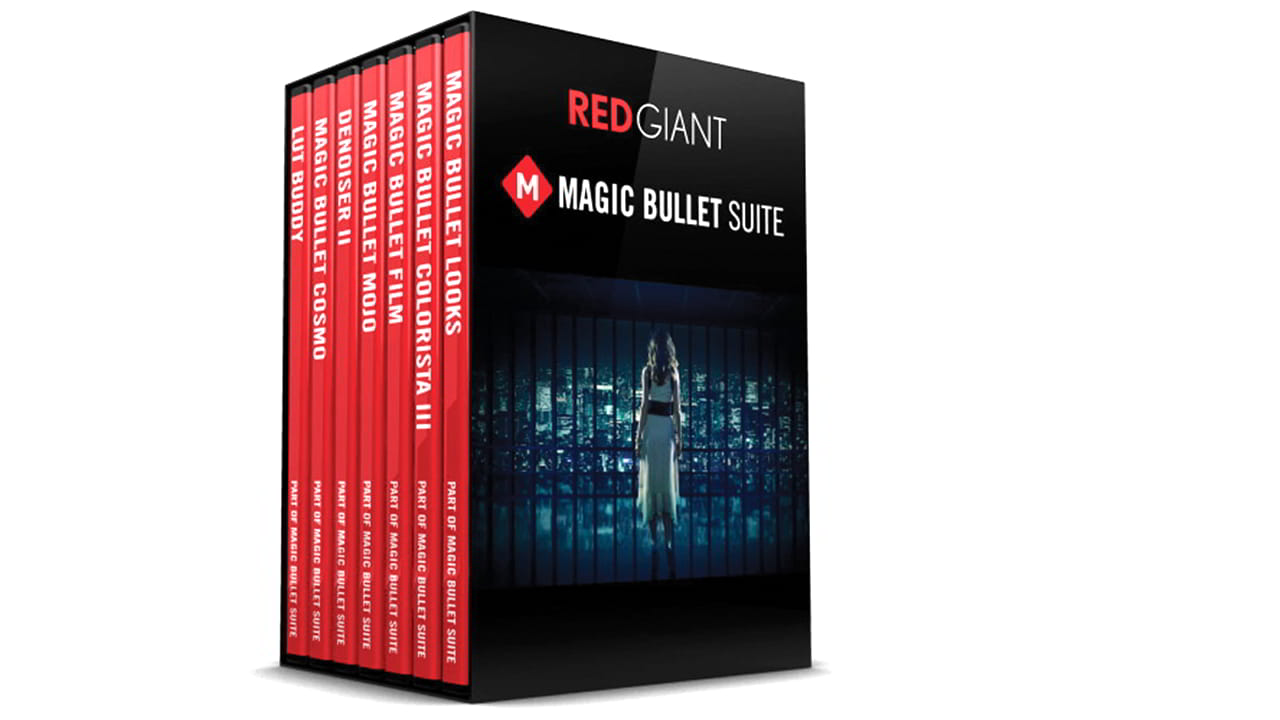
Red Giant Magic Bullet Suite 2023.2.1 Win x64
Red Giant Magic Bullet is one of the best plugins for color correction of After Effects and Premiere Pro shots, the Red Giant Magic Bullet plugin is Magic Bullet Suite, and in short, everything you need to make the footage look great, right in the editing timeline. gives you. This plugin has a wonderful color adjustments tool to balance the shots, which works just as the human eye expects to see it. This software is from redgiant company.
Red Giant Magic Bullet Suite 2023.2.1 Win x64
Red Giant Magic Bullet Suite is a collection of plugins designed for color correction, color grading, and finishing in video post-production. It is widely used in the film and video industry to enhance the visual quality of footage, create cinematic looks, and streamline the color grading process. The suite is compatible with popular video editing software like Adobe Premiere Pro, After Effects, Final Cut Pro, and DaVinci Resolve.
Key Features of Magic Bullet Suite:
- Colorista: A powerful color grading tool that allows for precise color correction and grading. It includes features like secondary color correction, skin tone adjustments, and advanced masking.
- Looks: A tool for applying cinematic color grades and film looks to footage. It includes a library of presets and allows for custom adjustments to create unique styles.
- Mojo: Designed to quickly enhance skin tones and create a stylized look, often used for creating a “blockbuster” or cinematic feel.
- Film: Emulates the look of real film stocks, including grain, halation, and other filmic characteristics, to give digital footage a more organic and cinematic appearance.
- Cosmo: A tool for smoothing skin tones and reducing blemishes while maintaining natural textures, often used in beauty and portrait work.
- Denoiser: Reduces noise and grain in low-light or high-ISO footage while preserving detail.
- LUT Buddy: Simplifies the process of working with LUTs (Look-Up Tables) by allowing users to import, export, and apply LUTs directly within their editing software.
- Renoiser: Adds realistic film grain to footage, which can help match different shots or give digital footage a more filmic texture.
Applications:
- Film and Video Production: Used to create cinematic looks and enhance the visual storytelling of films, commercials, and music videos.
- Broadcast and Corporate Videos: Helps achieve professional color grading for TV shows, interviews, and corporate content.
- Social Media and Online Content: Enables creators to apply polished, professional color grades to YouTube videos, vlogs, and other online content.
Compatibility:
Magic Bullet Suite integrates seamlessly with:
- Adobe Premiere Pro
- Adobe After Effects
- Final Cut Pro X
- DaVinci Resolve
- Avid Media Composer
Pricing:
Magic Bullet Suite is available as part of Red Giant’s subscription-based model, which includes access to other Red Giant tools like Trapcode Suite and VFX Suite. Pricing varies depending on the subscription plan.
Why Use Magic Bullet Suite?
- Efficiency: Streamlines the color grading process with intuitive tools and presets.
- Creative Freedom: Offers a wide range of options for creating unique and stylized looks.
- Professional Results: Helps achieve high-quality, cinematic visuals that stand out.
If you’re a video editor or colorist looking to enhance your workflow and create stunning visuals, Magic Bullet Suite is a powerful and versatile toolset to consider.
Features of the Red Giant Magic Bullet plugin:
color correction Magic Bullet Suite The Magic Bullet plugin works great in the field of color correction and really gives us accurate simulations of various types of lens filters and film stocks.
Apply Hollywood style Stylize of a Hollywood: With the full Magic Bullet Suite package, you can use its real-time color correction tools and you no longer need to transfer your project between different software! Give Hollywood film to your projects. Because you can instantly have the look and feel of cinematic contrast with its original sophisticated color palettes in your projects.
The Red Giant Magic Bullet plugin has been produced with all ready and fully editable and customizable presets based on movies and TV shows, and you can get beautiful results in Create a few seconds.
Red Giant Magic Bullet Suite REFINE
It is one of the best tools for balancing skin tones and wrinkles and removing skin spots, the quality and method of using it depends on your own talent! Which gives a completely natural look. Results arrive!
Removing noise and unwanted textures Red Giant Magic Bullet Suite CLEANUP: Creating noise when shooting night footage is one of the most important problems due to low light or high ISOs! The Magic Bullet Suite plugin can remove all your noises. slow and while not losing all the details of your image! Also, at the end of the color grading process, the Magic Bullet Suite plugin can reduce some of the imperceptible textures and make your project look natural as if there was no computer processing. It didn’t happen on your project!
How to use red giant magic bullet ?
Using Red Giant Magic Bullet Suite involves integrating its plugins into your video editing or compositing software (such as Adobe Premiere Pro, After Effects, Final Cut Pro, or DaVinci Resolve). Below is a step-by-step guide to help you get started with Magic Bullet Suite.
Step 1: Install Magic Bullet Suite
- Download and install Magic Bullet Suite from the Red Giant website or via Maxon App (if you have a subscription).
- Ensure the plugins are installed correctly and are compatible with your editing software.
- Restart your editing software to activate the plugins.
Step 2: Apply Magic Bullet Tools to Your Footage
- Open Your Project:
- Load your video project in your editing software (e.g., Adobe Premiere Pro, After Effects, etc.).
- Apply a Magic Bullet Plugin:
- In your editing software, locate the effects panel and search for the Magic Bullet plugin you want to use (e.g., Colorista, Looks, Mojo, etc.).
- Drag and drop the plugin onto your video clip in the timeline.
Step 3: Customize the Effect
Each plugin in Magic Bullet Suite has its own interface and settings. Here’s how to use some of the most popular tools:
1. Colorista (Color Grading):
- Open the Colorista effect controls in your editing software.
- Use the 3-Way Color Corrector (shadows, midtones, highlights) to adjust the color balance.
- Use the Secondary Color Correction to isolate and adjust specific colors (e.g., skin tones).
- Apply masks or vignettes to focus on specific areas of the frame.
2. Looks (Cinematic Styles):
- Apply the Looks plugin to your clip.
- Open the Looks Builder to browse and apply preset cinematic looks.
- Customize the look by adjusting parameters like exposure, contrast, saturation, and color tones.
- Use the Subject and Lens tools to refine the effect.
3. Mojo (Stylized Look):
- Apply the Mojo plugin to your clip.
- Adjust the Warmth and Coolness sliders to balance the skin tones and background.
- Use the Mojo Intensity slider to control the strength of the effect.
4. Film (Film Emulation):
- Apply the Film plugin to your clip.
- Choose a film stock emulation (e.g., Kodak, Fuji, etc.).
- Adjust settings like Grain, Halation, and Highlight Rolloff to mimic the look of real film.
5. Cosmo (Skin Retouching):
- Apply the Cosmo plugin to your clip.
- Adjust the Smoothness and Blush sliders to smooth skin tones and add natural color.
- Use the Detail slider to retain texture and avoid an overly plastic look.
6. Denoiser (Noise Reduction):
- Apply the Denoiser plugin to your clip.
- Adjust the Reduce Noise slider to remove grain or noise while preserving detail.
- Use the Enhance Detail slider to sharpen the image if needed.
Step 4: Preview and Fine-Tune
- Play back your footage to preview the effect.
- Make adjustments to the plugin settings to achieve the desired look.
- Use keyframes (if supported) to animate changes over time.
Step 5: Render Your Project
- Once you’re satisfied with the results, render your project in your editing software.
- Magic Bullet effects will be baked into the final output.
Tips for Using Magic Bullet Suite:
- Start with Presets: Use the built-in presets in tools like Looks or Mojo as a starting point, then customize them to fit your project.
- Use Masks: Many plugins (like Colorista) allow you to apply effects to specific areas of the frame using masks.
- Combine Tools: Layer multiple Magic Bullet plugins (e.g., Colorista for grading + Film for grain) to create more complex looks.
- Experiment: Don’t be afraid to experiment with different settings and combinations to find your unique style.
Example Workflow in Adobe Premiere Pro:
- Import your footage and add it to the timeline.
- Apply Colorista for basic color correction.
- Add Looks to apply a cinematic style.
- Use Mojo to enhance skin tones and create a stylized look.
- Add Film to emulate a filmic texture.
- Preview and render your project.
By following these steps, you can effectively use Red Giant Magic Bullet Suite to enhance your video projects with professional color grading and cinematic effects. Let me know if you need help with a specific plugin or workflow!