3DSky – Book generator v0.2 for 3ds Max
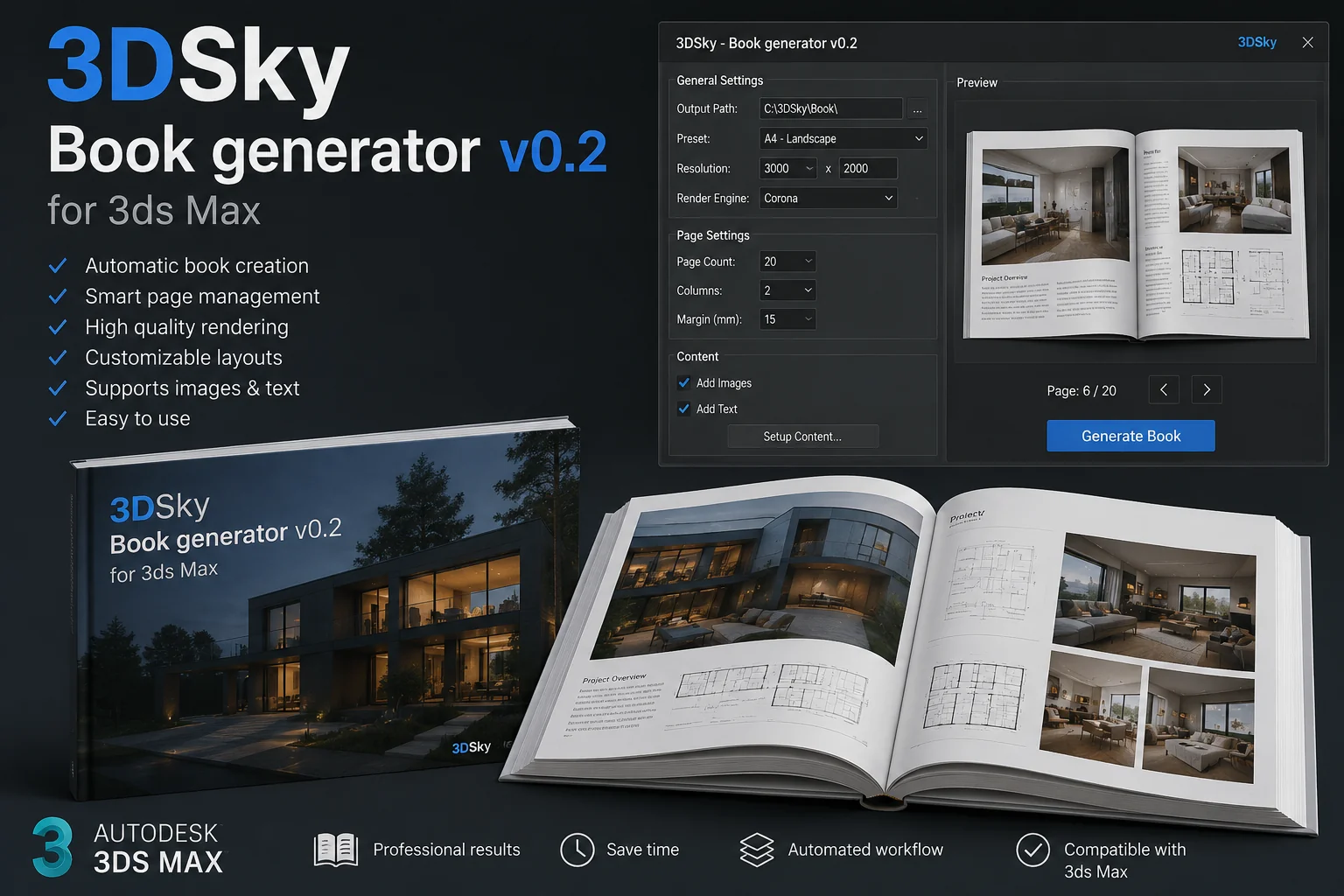
Download 3DSky – Book Generator v0.2 for 3ds Max 🚀 The Ultimate Random Book Creator
Introduction:
Hey there, fellow 3D artist! 👋 Are you tired of manually modeling every single book on a shelf? Does the thought of texturing hundreds of book covers one by one make you want to close 3ds Max and take a nap? I feel your pain! That is exactly why the Book Generator v0.2 script is about to become your new best friend.
This awesome little tool is a massive upgrade from the previous version. If you are looking to fill a library, decorate a cozy living room, or create a complex bookshop scene in minutes instead of hours, you have come to the right place. Let’s dive into this shiny new version, see what magic it can do, and learn how to use it step by step. And yes, we will get to the download link too! 😉
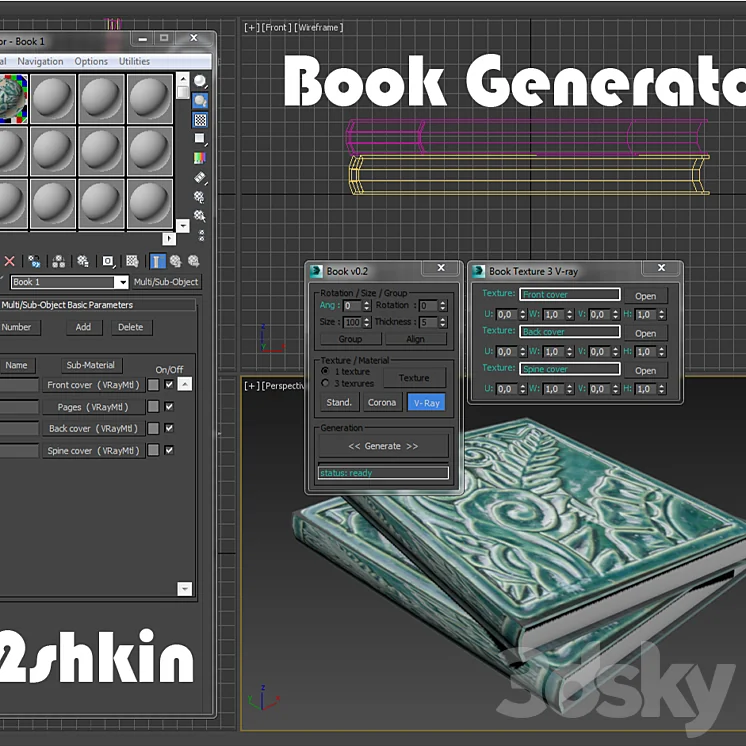
3DSky – Book generator v0.2 for 3ds Max
This content is restricted to paid subscribers
🎉 What is Book Generator v0.2?
Think of this script as your personal librarian, but instead of shushing you, it builds hundreds of unique 3D books instantly. The Book Generator v0.2 is a new and improved version of the famous random book generator. It focuses heavily on fast editing of sizes and super easy texturing of covers. The developer highly recommends checking out their blog for an even more detailed description, but honestly, this guide will turn you into a pro user in no time.
The biggest pain point in the old version was the tedious setup of materials and sizes. This version sweeps all those headaches away with smart automatic features. It is fast, intuitive, and honestly quite fun to play with.
🚀 What is New? (The Cool Features You Will Love)
So, why should you grab this update? Here is the breakdown of the shiny new tools waiting for you:
1. Automatic Render Engine Detection 🧠
Stop messing around with material settings! The script now automatically recognizes whether you are using V-Ray or Corona. It just knows. This means your book materials will work perfectly without you having to manually convert anything. Smart, right?
2. Fast and Convenient Size Correction 📏
Do you have a specific gap on a shelf that needs filling? No problem. You can now quickly tweak the dimensions of your generated books on the fly. No more scaling issues or weird, stretched textures. It fits like a glove.
3. Load and Align Textures Without a Material Unit 🎨
This is a game changer. You can now load custom book cover textures and perfectly align them without needing a standard material setup. It streamlines the process so you can get the exact look you want instantly.
4. Group All Books with One Button 🗂️
Chaos, be gone! After generating a massive pile of books, they can get messy. Just hit this button, and all your books instantly become one neat group. Moving, rotating, and managing your library has never been easier.
5. Generate a Book on a Selected Object 🎯
Need a book lying flat on a table, or leaning against a specific spot? Just select an object (or even a face), and the script will place a book right there. Precision placement without the headache.
6. Align Two Books With Each Other 📚
Want to stack books perfectly or lean them against each other in a natural way? This feature automatically aligns two books together, making it look like they have been sitting on that shelf for years.
7. Graphical Button for the Interface 🖱️
You can now embed a nice visual button into your 3ds Max interface (like the “Mah” custom toolbars). This means no more digging through scripts to run it. One click, and you are in book heaven.
Special Note: If you already bought Book Generator v0.1, send the developer a message for a free update! It is always nice when hard work is rewarded. 🤝
📚 How to Use Book Generator v0.2 (Step-by-Step)
Let us get our hands dirty. If you are new to this script, follow these friendly steps to build your first library:
Step 1: Prepare Your Shelf (or Space) 🛋️
Open your scene in 3ds Max. Have a basic bookshelf or a flat surface ready. The script needs a place to put the books, obviously!
Step 2: Run the Script ⚡
Go to Scripting > Run Script, find the Book Generator v0.2 file, and load it up. If you have embedded the graphical button, just click that beautiful icon.
Step 3: Choose Your Render Engine 🎨
Remember the automatic detection I mentioned? It will likely already be set. Just glance at the settings to make sure it says V-Ray or Corona according to your setup.
Step 4: Generate Your Books 🌪️
Hit the main “Generate” button. Boom! A random set of books will appear in your viewport. They will have different heights, widths, and random textures. If you want more control, you can define the number of books before hitting generate.
Step 5: Editing and Tweaking ✨
Use the Size Correction slider to adjust the bulk of the books to perfectly fill your shelf. If you want a specific book on top of another, use the Align Two Books tool. Just select the first book, then the second, and watch them snap together naturally.
Step 6: Custom Covers 🖼️
Do you want a specific book, like an atlas or a specific novel, to stand out? Use the Load and Align Textures feature to slap a custom JPEG cover onto any generated book. It will map perfectly without breaking a sweat.
Step 7: Organize Your Scene 📦
Finally, select all your new books and click Group All Books. Now the whole library is a single, tidy object that you can move anywhere. Done! You are a library-building master.
💡 Pro Tips for a Realistic Library
Just dumping randomized books can look artificial. To make your renders truly pop, keep these friendly tips in mind:
-
Vary the Sizes: Real books are never perfectly uniform. Use the size correction gently to break up the monotony.
-
Lean Them: Don’t just let them stand straight like soldiers. Use the align tool to lean a few books at an angle against a straight row. Imperfection looks organic.
-
Mix Old and New: If you are using custom covers, mix high-res modern textures with some slightly worn-looking ones. Contrast tells a story.
-
Leave Gaps: A full shelf looks artificial. Leave a small gap here or there, as if someone just grabbed a book to read.
🔥 Why You Need This Script Right Now
In the world of archviz and 3D design, time is literally money. Modeling a single book with a nice spine and cover can take 10 minutes. Filling a large Victorian library manually? That is your whole week gone. The Book Generator v0.2 does it in seconds, with better variety than you could ever achieve by hand.
It is lightweight, it is smart, and it plays nice with both V-Ray and Corona. Whether you are an interior design pro or a hobbyist working on your dream scene, this tool removes the boring part of the job so you can focus on the art.
Ready to speed up your workflow? Go ahead and download the 3DSky – Book Generator v0.2 for 3ds Max and watch the magic happen. Your renders will thank you! Happy rendering everyone! 🎨📚✨



![[Download] Maxtree – Plant Models Vol 49: 3D plant models](https://3dmaxfarsi.com/wp-content/uploads/2025/01/maxtree-plant-models-vol-049-390x220.webp "[Free] Maxtree – Plant Models Vol 49: 3D plant models 6")