[Download] Project Manager v4.00.70 for 3ds Max
KStudio - Project Manager for 3ds Max v4.00.70 Win
KStudio Project Manager for 3ds Max v4.00.70 Download – The Ultimate AI Asset Organizer 🚀
Hey there, fellow 3D artist! 👋 Are you tired of wasting precious creative hours digging through messy hard drives looking for that one perfect chair model? We have all been there. You know the drill: endless clicking through folders, manually renaming files, and forgetting what you even have in your library. It is a creativity killer! 😩
But guess what? The game has officially changed. Let me introduce you to the tool that will save your sanity: KStudio Project Manager for Autodesk 3ds Max v4.00.70. This is not just an update; it is a revolution in how you manage your 3D assets. And yes, you can download the latest version right here! 💾
KStudio – Project Manager for 3ds Max v4.00.70 Win
Installation:
1. Install Project_Manager_Setup_v.4.00.49.exe;
2. Run ProjectManager.v4.x.Patcher.exe as administrator and patch the required version of Project Manager v.4x found;
3. For users who need the AI module and whose access to the official website is blocked, this module can be installed offline. It is located in the _ai.classifier folder, and installation instructions are also provided there.
4. Enjoy :)
PS: The patcher has been tested on versions from 4.00.18 to 4.00.49. I don’t know how it will perform on newer versions.
🧠 What Makes This Plugin a Superhero?
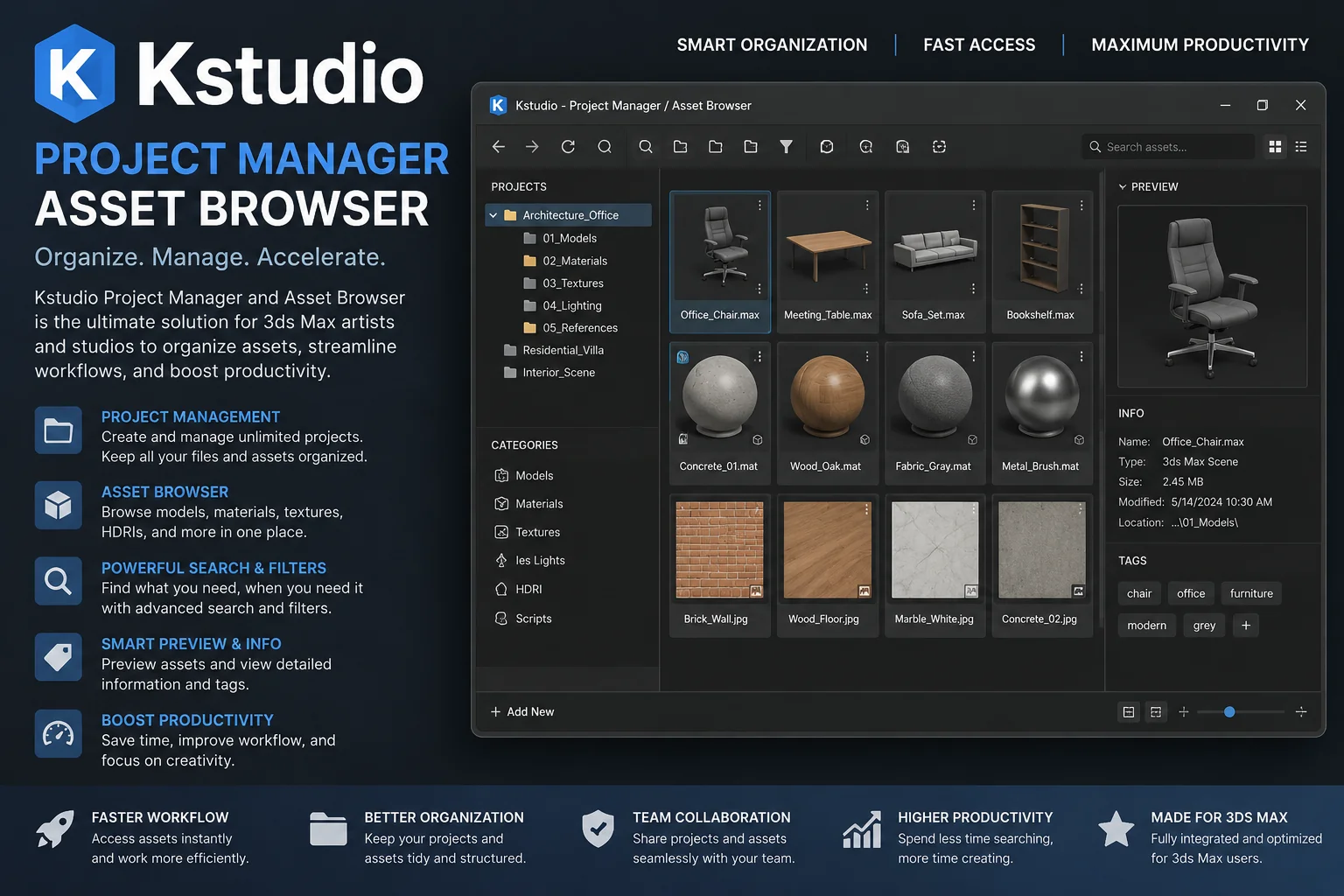
Forget manual tagging forever. The true magic of KStudio Project Manager is the local AI engine humming at its core. It literally looks at your models and understands them. It automatically classifies your entire library by type, material, form, and style. Imagine dropping a hundred downloaded models into your folder, and the plugin sorts them automatically. Your library finally organizes itself. Mind-blowing, right? 🤯
🔍 Find Similar & Color Search: Your Visual Google
This is where things get sci-fi cool. The “Find Similar” feature is a lifesaver. Let us say you have a reference image from a client, or an old model in your scene. Just hit Find Similar, and the AI scours your library for matching models based on shape and style. It is like magic. ✨
And the Colour Search? It is ridiculously fast. Need a blue fabric texture or a red plastic material instantly? Just pick the color, and boom 💥, every matching asset appears. It pulls up models and textures by color in an instant, making mood board creation lightning fast.
🛠️ Features That Streamline Your Entire Workflow
Managing a massive library of Models, Materials, Textures, IES lights, and Proxies usually eats up hours. Project Manager streamlines every step so you can focus on being creative.
-
Browse Archives Like Folders: You can open ZIP, RAR, and 7Z archives directly inside the browser without extracting them. Yes, really! 📂
-
Drag & Drop Magic: Simply drag and drop assets straight into your viewport. You can even paint objects directly onto surfaces. It feels so natural.
-
Real Time Previews: Check this out—you can preview Materials, IES light profiles, and even BVH animations in real time before importing. No more guesswork! 👀
-
Batch Tools on Steroids: Need to automate the boring stuff? Use the batch tools for image conversion, renaming files, fixing broken links, and running render-and-relink workflows. It handles the grind so you do not have to. ⚙️
💻 Totally Local, Zero Subscription
Listen, we are all tired of cloud subscriptions eating our wallets. The best part? Everything runs locally on your machine. No cloud, no monthly fees, no internet connection required. Your data stays private, and it is blazing fast because it is running right on your hardware. That is a massive win. 🏆
🧩 Unmatched Flexibility for Power Users
This plugin bends to your will. An extensive API lets you extend Project Manager with custom scripts and add-ons. You can customize the interface to fit your exact workflow and define your own keyboard shortcuts. Make it your own!
🤝 Team Collaboration Made Easy
Working in a studio? The Network Database Sync feature is a godsend. It synchronizes your entire catalogue structure—folder trees and metadata—across all users and workstations. So the whole team is always on the same page, using the same organized library. Teamwork just got a whole lot smoother. 🤜🤛
🎓 Quick Start Guide: How to Supercharge Your Library
Ready to jump in? Here is a friendly guide to getting started with your new favorite tool:
-
Installation & Setup: Run the installer and load 3ds Max. Go to the customize menu, find the plugin, and drag it into your toolbar for easy access.
-
Point it to Your Library: Open Project Manager and point the root folder to wherever your messy collection of assets lives. The automatic AI classification will kick off immediately.
-
Master the Visual Search: Hit the “Find Similar” button and load a reference image. Watch how fast it finds the closest matches in your archive. It is perfect for concept work.
-
Paint Your Assets: Select a model in the browser, activate the paint tool, and click on a surface in your scene. It scatters objects perfectly aligned to the geometry. Great for vegetation or debris! 🌿
-
Set Up Network Sync: For team leaders, go to the settings tab and configure the Network Database path. Let your teammates point to the same network location, and the synchronization is automatic.
Stop letting a messy library kill your creative vibe. You are an artist, not a file clerk. Download KStudio Project Manager for Autodesk 3ds Max v4.00.70 now and bring the joy back to your workflow. Your future self will thank you! 😉