[ِDownload] UV Tools 3.3.08 for 3ds Max Win
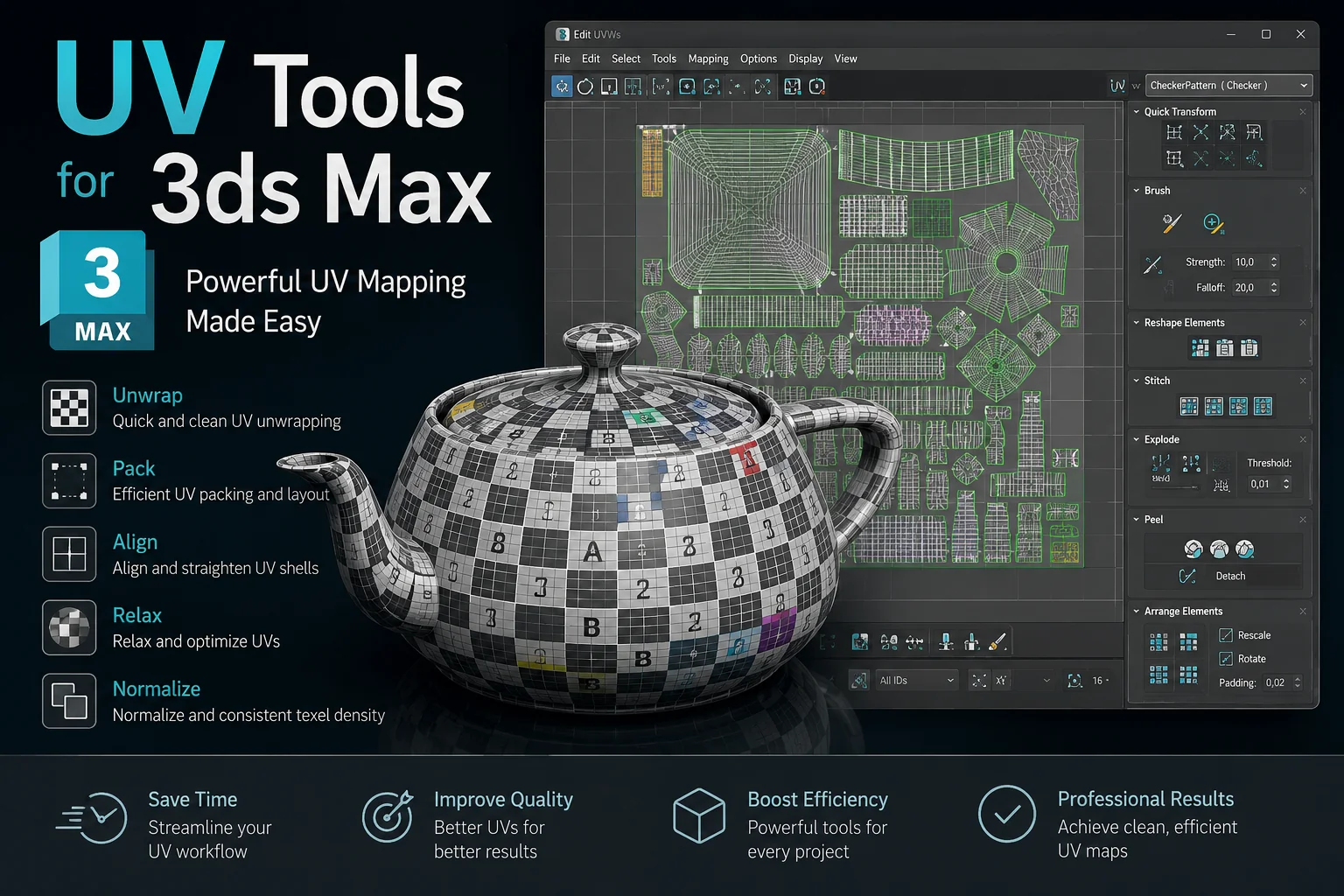
Download UV Tools for 3ds Max (Win) – The Ultimate Unwrapping Sidekick 🚀
Tired of fighting with messy UVs in 3ds Max? Does the thought of manually straightening and packing a hundred shells make you want to throw your monitor out the window? 😫 I have been there, my friend. We have all been there.
But what if I told you there is a plugin that makes UV mapping feel less like a chore and more like a fun puzzle? Enter UV Tools – your new best buddy for all things unwrapping.
In this guide, I am going to walk you through what this amazing script can do, how it will save your sanity, and why it is a must-have for Archviz, Gamedev, and VFX artists. Let’s dive in! 🏊♂️
UV Tools 3.3.08 for 3ds Max Win
This content is restricted to paid subscribers
What is UV Tools Anyway? 🤔
Easy to use Unwrap tools for Archviz, Gamedev and more.
Simply put, UV Tools is a supercharged productivity plugin created to make your UV mapping workflow inside 3ds Max faster and way more intuitive. Think of it as a magic toolbox that handles all the annoying, repetitive stuff for you.
Whether you are building the next big video game world, crafting a cozy architectural interior, or creating a hero asset for a blockbuster movie, this tool is for you. It does not matter if you are a total beginner or a seasoned pro; UV Tools strips away the complexity and lets you focus on the art. 🎨
Script requirements:
It plays nice with 3dsMax 2013 and all later versions. So, unless you are using a digital dinosaur, you are good to go! 🦕✅
Why You Absolutely Need This Plugin in Your Life 💖
Imagine this: you have a complex architectural model with hundreds of objects. Manually aligning, scaling, and packing each UV shell would take hours, maybe even days. UV Tools crunches that time down to minutes. It is not just a time-saver; it is a creativity-unlocker. 🗝️
Here is a sneak peek at what makes it so powerful:
✅ Viewport Magic
Stop going back and forth between the UV Editor window! UV Tools lets you perform complex transformations like aligning, rotating, and scaling UV shells directly in the 3ds Max viewport. It is intuitive, visual, and incredibly fast. You see the changes in real-time on your model. It feels like sculpting but for UVs. ✨
✅ The Texel Density Guardian
Ever had a scene where one object looks super crisp and another looks like a blurry potato? 🥔 That is a texel density mismatch. UV Tools comes with advanced utilities to quickly get, set, and check texel density across your entire scene, ensuring consistent texture resolution everywhere. It is like having a built-in quality control expert.
✅ Alignment Made Effortless
Forget about manually nudging vertices. With UV Tools, you can instantly straighten, align, and distribute UV shells. Need to straighten those wonky wood plank UVs in your archviz scene? One click. Boom. Perfect. 🪄
✅ Randomization with a Soul
Creating a brick wall or a tile floor and want to avoid obvious repeating patterns? The randomize functions let you shuffle the positions, rotations, and scales of your UV shells to introduce natural variation. It adds that subtle, organic feel that makes your work stand out from the crowd.
A Closer Look at the Awesome Features 🔍
Let’s break down the toolkit so you know exactly what kind of firepower you are getting. This plugin combines a clean, easy-to-understand interface with a robust set of utilities.
1. Transform & Arrange with Style 🕺
You can quickly select a bunch of UV shells and use intuitive controls to:
-
Move, Rotate, and Scale with precision.
-
Arrange them into neat rows and columns, which is a lifesaver for modular gamedev assets.
-
Orient shells horizontally or vertically to match grain direction, perfect for wood and metal textures in Archviz.
2. Advanced Checker Map Tools 🏁
The built-in advanced checker map is more than just a pretty pattern. It is a diagnostic tool. You can apply a high-contrast checker map with a single click to instantly spot stretching, squeezing, or distortion issues. This lets you fix problems before you even start texturing, preventing headaches down the pipeline. Real-time visual feedback keeps you in the loop.
3. Optimize for Workflow Speed 🚄
The plugin’s design philosophy is all about reducing friction. It offers fully customizable shortcuts so you can assign hotkeys to your favorite operations. Its lightweight architecture means it won’t bog down 3ds Max, even when you are working with dense, multi-million-polygon scenes. The learning curve is super gentle, but the depth is there for power users. This makes it ideal for both beginners and experienced professionals.
Who is UV Tools Perfect For? 🎯
Designed with compatibility and performance in mind, UV Tools slides right into your existing 3ds Max pipeline without a fuss.
-
Archviz Artists: Say goodbye to misaligned wood grains on furniture and inconsistent stone textures on walls. Quickly organize everything to look photorealistic. Perfect for furniture, modular building components, and props. 🛋️🏢
-
Game Developers: Need to pack lightmaps efficiently? Need to maintain strict texel density for environment assets? UV Tools is an industry secret weapon for hard-surface assets and modular kit pieces. 🎮
-
VFX & Product Rendering Pros: When you need pixel-perfect accuracy on detailed production models, the precision alignment tools help you achieve a flawless result. 💎
In short, if you create 3D assets, this toolkit will quickly become an essential part of your daily driver setup. It handles virtually any UV mapping task you can throw at it, adapting to your needs rather than forcing you into a specific workflow.
How to Get Started and Boost Your Workflow ⬇️
Ready to bring this UV powerhouse into your creative arsenal? The installation is straightforward, and the plugin integrates seamlessly. Once it is loaded, I recommend doing this first:
-
Open a test asset and just play with the alignment tools in the viewport to get a feel for the real-time magic. ✨
-
Assign a hotkey to the “Straighten Shells” function. Your future self will thank you. ⌨️
-
Use the Texel Density tool on an older project to see just how inconsistent your texture resolution might have been. Prepare to be shocked! 😲
Final Thoughts ✍️
UV Tools is not just another script; it is a genuine workflow revolution for 3ds Max users. It takes the technical drudgery out of UV mapping and gives you back the joy of creating. The combination of viewport-based transformations, real-time feedback, and smart utilities makes it a five-star addition to any studio or freelance toolkit.
So, what are you waiting for? Ditch the tedium, streamline your pipeline, and start creating cleaner, more consistent textures today. Your 3D models deserve it. Happy unwrapping! 🎉