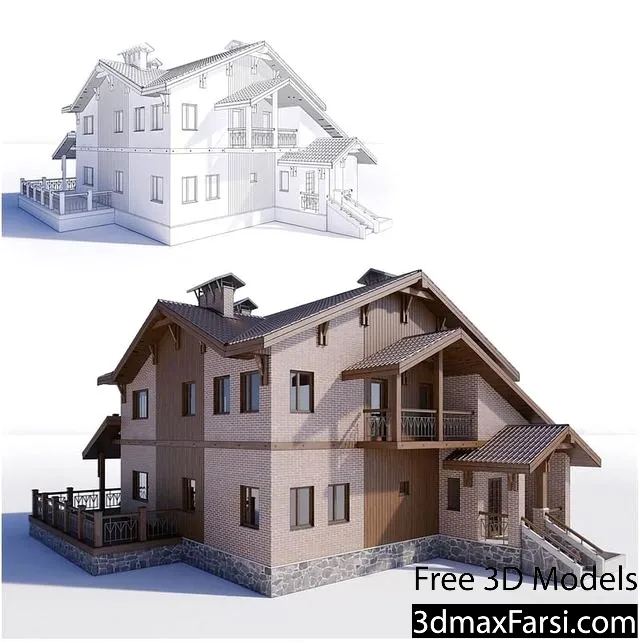
3dsky – Cottage 003 (House-Brick) 3d models download 3dsky – Cottage 003 (House-Brick)
Read More »Buildings 3d models
3D Building Models – Browse & Download Formats
popular 3D file formats ·.max – 3ds Max ·.blend – Blender ·.c4d/.xml – Cinema 4D ·.ma/.mb – Maya
Creating 3D models of buildings can be done using various software tools depending on your skill level, the complexity of the project, and the intended use (e.g., architectural visualization, gaming, 3D printing, etc.). Below is a guide to help you get started:
1. Choose the Right Software
Here are some popular tools for creating 3D building models:
For Beginners:
- SketchUp: User-friendly and great for architectural design. It has a free version (SketchUp Free) and a Pro version with more advanced features.
- Tinkercad: A browser-based, beginner-friendly tool for simple 3D modeling.
- Blender: Free and open-source, Blender is versatile and can be used for both simple and complex models. It has a steeper learning curve but is very powerful.
For Professionals:
- Autodesk Revit: Industry-standard for architectural design and BIM (Building Information Modeling).
- Autodesk 3ds Max: Used for high-quality architectural visualization and rendering.
- Rhino 3D: Great for complex architectural designs and parametric modeling.
- Archicad: Another BIM tool popular among architects.
For Gaming or Real-Time Visualization:
- Unity or Unreal Engine: These game engines allow you to import 3D models and create interactive environments.
- Cinema 4D: Often used for motion graphics and visualizations.
2. Steps to Create a 3D Building Model
Here’s a general workflow:
Step 1: Gather Reference Material
- Collect blueprints, sketches, or photos of the building you want to model.
- Take measurements if you’re modeling a real building.
Step 2: Start with the Basic Structure
- Use basic shapes (cubes, cylinders, etc.) to block out the building’s overall form.
- Focus on proportions and scale.
Step 3: Add Details
- Create walls, windows, doors, and roofs.
- Use tools like extrusion, beveling, and boolean operations to refine shapes.
Step 4: Texture and Materials
- Apply textures to surfaces (e.g., brick, glass, concrete).
- Use UV mapping to ensure textures align correctly.
Step 5: Lighting and Rendering
- Add lights to simulate natural or artificial lighting.
- Render the model to create high-quality images or animations.
Step 6: Export the Model
- Export the model in a format suitable for your needs (e.g., OBJ, FBX, STL for 3D printing, or GLTF for real-time applications).
3. Resources for Learning
- YouTube Tutorials: Search for tutorials specific to your software (e.g., “Blender building modeling tutorial”).
- Online Courses: Platforms like Udemy, Coursera, and Skillshare offer courses on 3D modeling.
- Documentation: Refer to the official documentation for your chosen software.
4. Free and Paid 3D Building Models
If you don’t want to create models from scratch, you can download pre-made models:
- Free Resources:
- SketchUp 3D Warehouse
- TurboSquid Free Models
- Free3D
- Paid Resources:
- TurboSquid
- CGTrader
- Unity Asset Store
5. Tips for Better Results
- Keep It Simple: Start with simple shapes and gradually add details.
- Use Reference Images: Always work with references to ensure accuracy.
- Optimize for Performance: If the model is for real-time use (e.g., games), keep the polygon count low.
- Experiment with Lighting: Good lighting can make even a simple model look stunning.
Let me know if you need help with a specific tool or step!
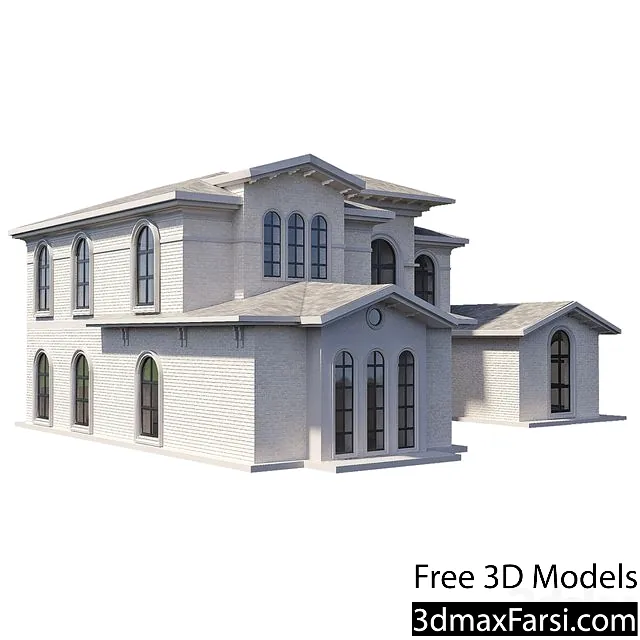
3dsky – Classical house 3d models download. 3dsky – Classical house
Read More »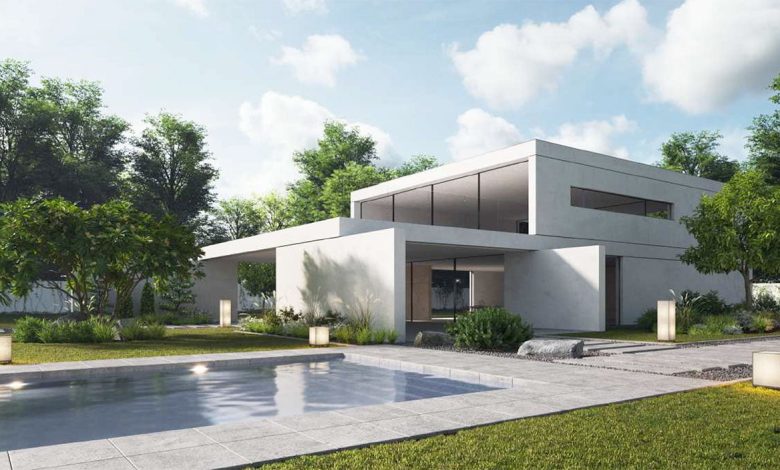
On this page you can find Evermotion – Archmodels vol. 254. Archmodels vol. 254 includes 32 assets for your visualizations.…
Read More »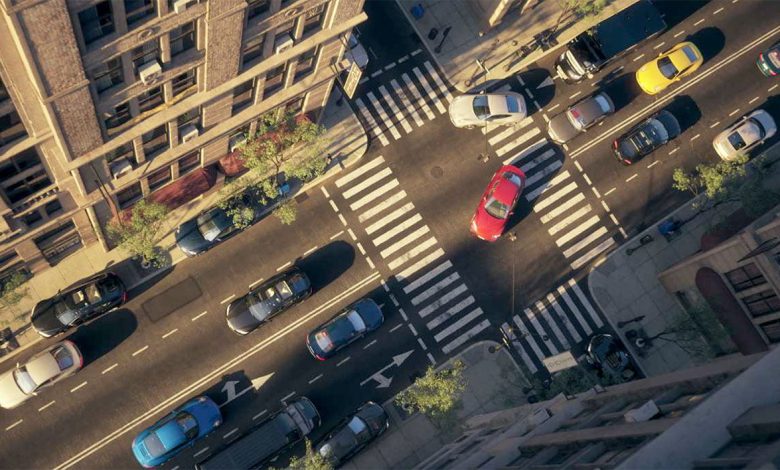
On this page you can find Evermotion – Archmodels vol. 251. Archmodels vol. 251 includes 64 professional, high quality 3d…
Read More »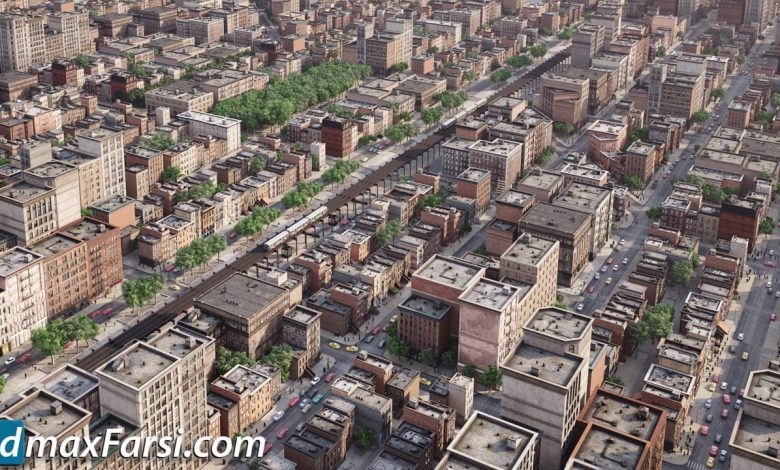
low poly 3d models Buildings, Street elements On this page you can find the collection Evermotion – Archmodels vol. Download…
Read More »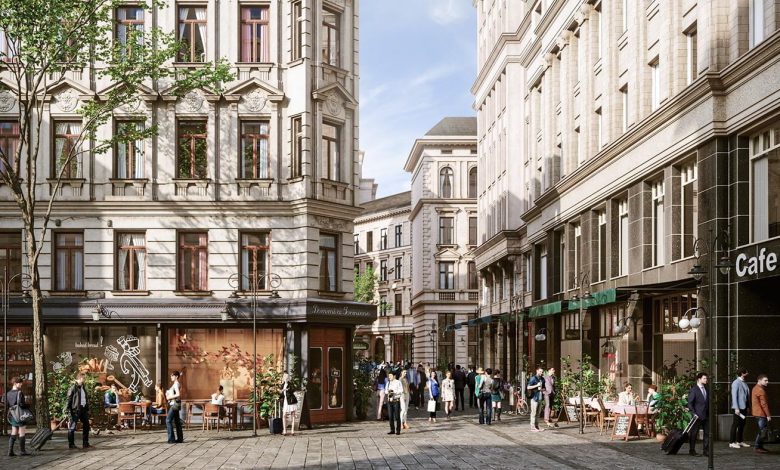
On This page you can download Evermotion – Archmodels Vol. 229 : European style buildings, with High Speed & Direct…
Read More »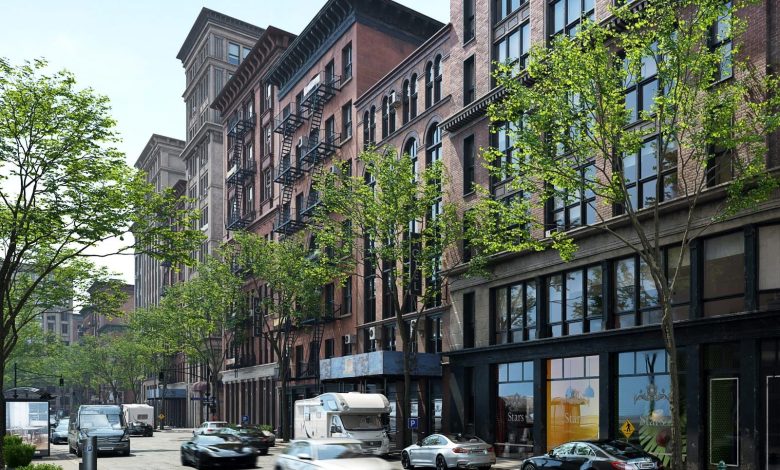
On This page you can download Architectural elements of 3d buildings Evermotion – Archmodels Vol. 215 : New York style…
Read More »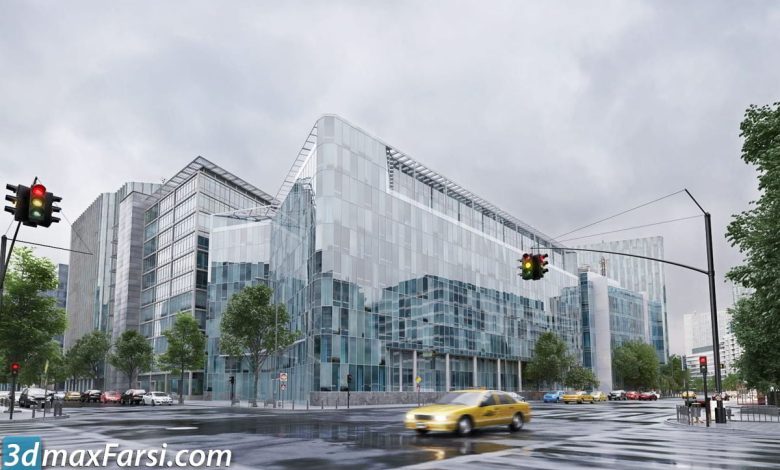
On this page, you can download the ready-made three-dimensional volume of an urban building, including: a three-dimensional model of…
Read More »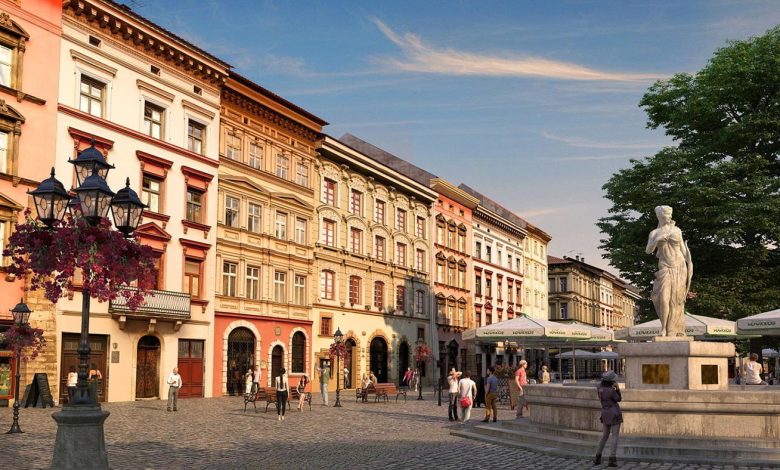
On This page you can download Evermotion – Archmodels Vol. 172 : buildings models, with High Speed & Direct link.…
Read More »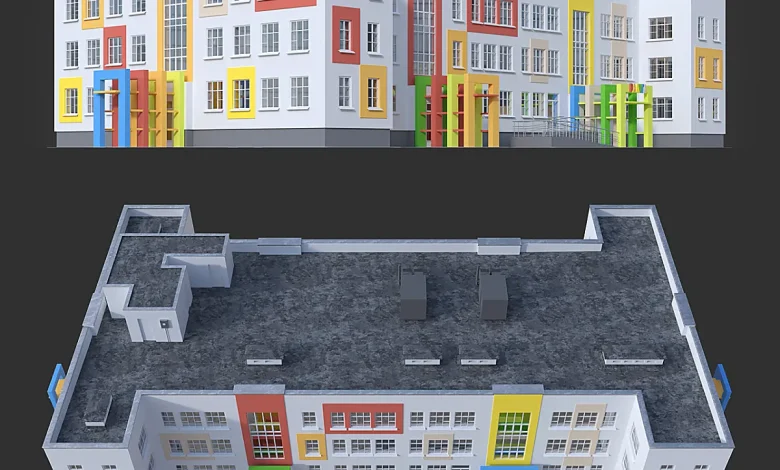
Get a 3D model of Kindergarten -Rainbow- – Building – 3D model for 3ds max. 3dsky – Kindergarten Rainbow
Read More »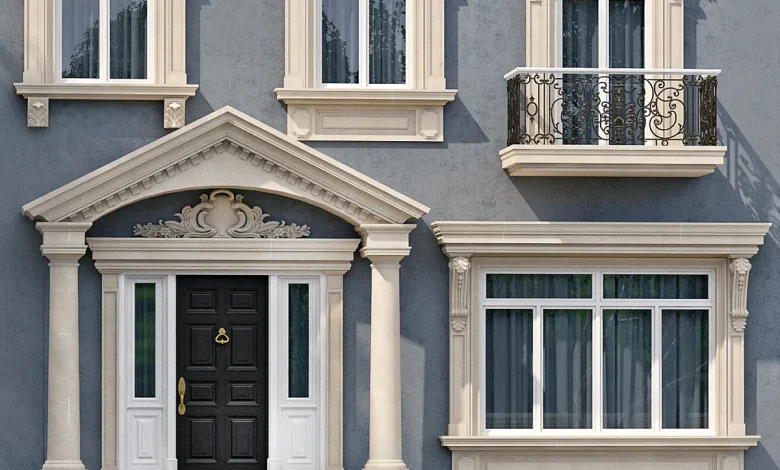
Get a 3D model of Windows and doors in the style of modern classics 5 – Windows – 3D model…
Read More »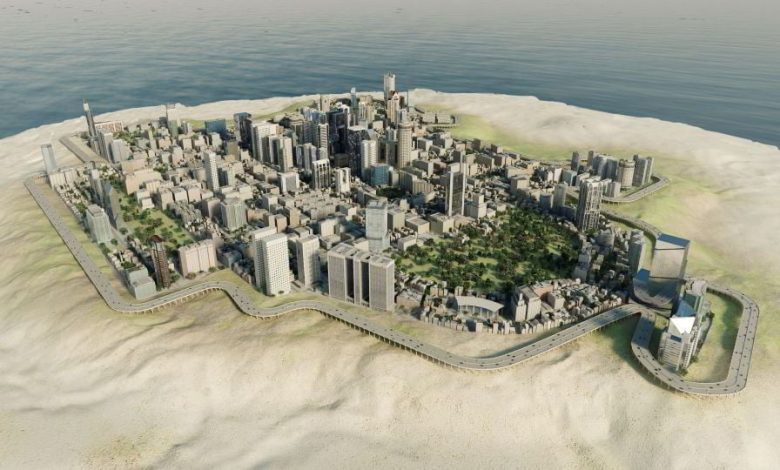
On This page you can download Evermotion – Archmodels Vol. 133 : 3d city parts, with High Speed & Direct…
Read More »