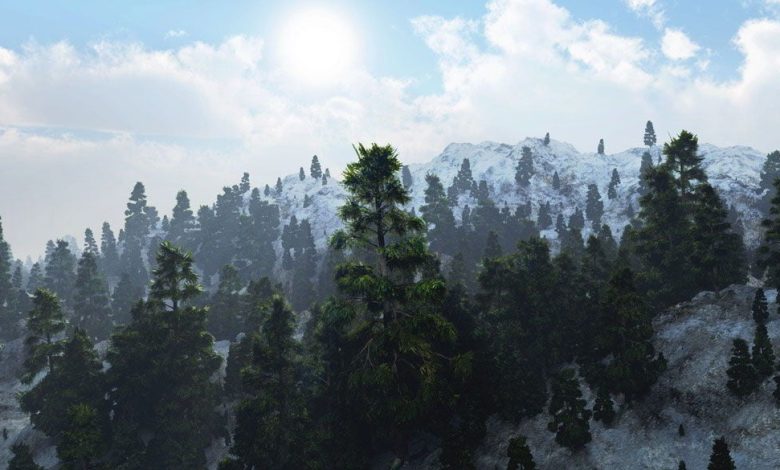
Pluralsight Materials in Vue xStream In this series of Vue xStream tutorials, we will learn the basics of how to…
Read More »Vue xStream Tutorials
Vue xStream video tutorials
Creating and rendering exceptionally rich and realistic natural environments in Vue xStream involves a combination of terrain modeling, ecosystem population, atmospheric effects, and lighting. Vue xStream is a powerful 3D environment creation tool that integrates seamlessly with major 3D software like Maya, 3ds Max, Cinema 4D, and others. Below is a step-by-step guide to help you get started with creating stunning natural environments in Vue xStream.
1. Setting Up Your Project
- Install Vue xStream: Ensure that Vue xStream is installed and properly integrated with your 3D software.
- Create a New Scene: Start by creating a new scene in Vue xStream. You can choose from various presets like mountains, forests, or plains, or start from scratch.
2. Terrain Modeling
- Terrain Editor: Open the Terrain Editor to sculpt your landscape. Use tools like erosion, smoothing, and height adjustments to create realistic terrain features such as mountains, valleys, and rivers.
- Procedural Terrain: Utilize procedural terrains for more complex and natural-looking landscapes. Adjust parameters like fractal noise, altitude, and slope to fine-tune the terrain.
3. Ecosystem Population
- Ecosystem Painter: Use the Ecosystem Painter to populate your terrain with vegetation, rocks, and other natural elements. You can paint areas with specific types of plants, trees, and rocks to create dense forests, meadows, or rocky outcrops.
- Ecosystem Population Settings: Adjust the density, scale, and distribution of the elements to create a more natural and varied environment. Use different layers for different types of vegetation to control their placement more precisely.
4. Atmospheric Effects
- Atmosphere Editor: Open the Atmosphere Editor to create realistic skies, clouds, and lighting conditions. Choose from various presets like clear sky, overcast, or sunset, or customize your own atmosphere.
- Clouds and Fog: Add volumetric clouds and fog to enhance the depth and realism of your scene. Adjust the density, altitude, and coverage of the clouds to match the mood you want to create.
- Lighting: Set up the sun and ambient lighting to match the time of day and weather conditions. Use global illumination and ambient occlusion to add depth and realism to the lighting.
5. Water and Weather Effects
- Water Surfaces: Add water bodies like lakes, rivers, or oceans. Use the Water Surface Editor to adjust the wave height, speed, and reflectivity to create realistic water effects.
- Weather Effects: Add weather effects like rain, snow, or wind to enhance the realism of your environment. Adjust the intensity and direction of the weather effects to match the overall mood of the scene.
6. Rendering
- Render Settings: Open the Render Settings to configure the resolution, quality, and output format of your render. Use anti-aliasing, motion blur, and depth of field to enhance the final image.
- Render Farms: For complex scenes, consider using a render farm to speed up the rendering process. Vue xStream supports distributed rendering, allowing you to render different parts of the scene on multiple machines.
7. Post-Processing
- Image Post-Processing: After rendering, use image editing software like Photoshop or After Effects to fine-tune the colors, contrast, and add any final touches like lens flares or vignettes.
- Compositing: If you’re integrating the Vue environment with other 3D elements, use compositing software like Nuke or After Effects to blend everything seamlessly.
8. Tutorials and Resources
- Official Vue xStream Documentation: Refer to the official documentation for detailed instructions and tutorials.
- Online Tutorials: Websites like YouTube, Vimeo, and specialized forums offer a wealth of tutorials and tips from experienced users.
- Community Forums: Join Vue xStream communities and forums to ask questions, share your work, and get feedback from other users.
Example Workflow
- 1- Create a Base Terrain: Start with a basic terrain and sculpt it to your desired shape.
- 2- Add Ecosystems: Populate the terrain with trees, grass, and rocks using the Ecosystem Painter.
- 3- Set Up Atmosphere: Choose an atmospheric preset and customize it to fit the mood of your scene.
- 4- Add Water and Weather: Create a lake or river and add weather effects like rain or fog.
- 5- Lighting: Adjust the sun position and intensity to create realistic lighting.
- 6- Render: Configure your render settings and start the rendering process.
- 7- Post-Process: Fine-tune the final image in post-processing software.
By following these steps and experimenting with the various tools and settings in Vue xStream, you can create exceptionally rich and realistic natural environments. Happy rendering!
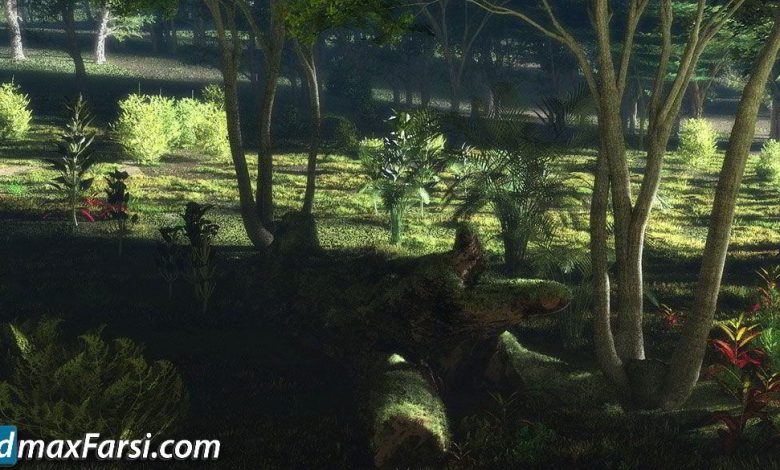
On This page you can download digital tutors Creating Realistic Terrains Using EcoSystems in Vue, (Video tutorial) with High Speed…
Read More »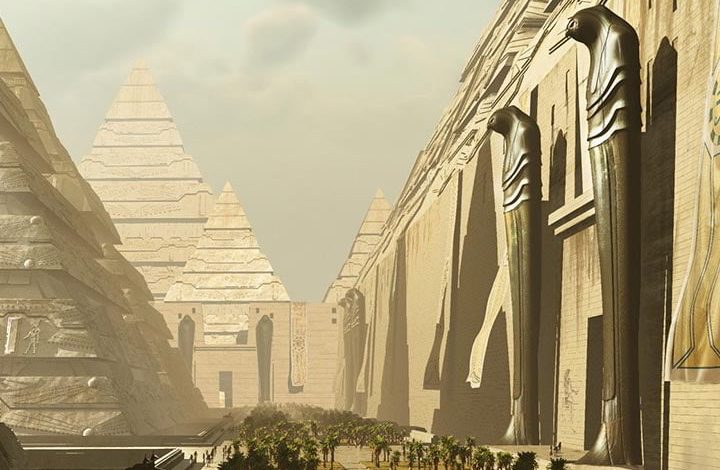
Download Creating a Matte Painting in 3ds Max and Vue xStream in this post, you can Creating a Matte Painting…
Read More »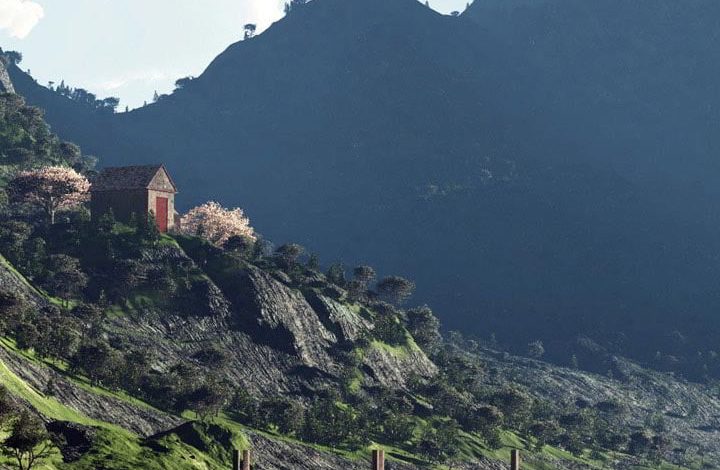
Download Scenic Environment Creation in Vue in this post, you can have this Video Vue tutorial, Scenic Environment Creation in…
Read More »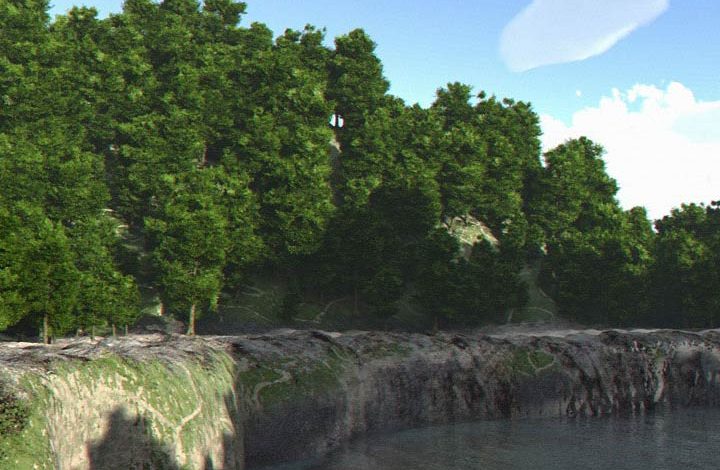
Download Terrains in Vue in This Post, you can download Terrains in Vue tutorial. In this specialized Vue training course,…
Read More »