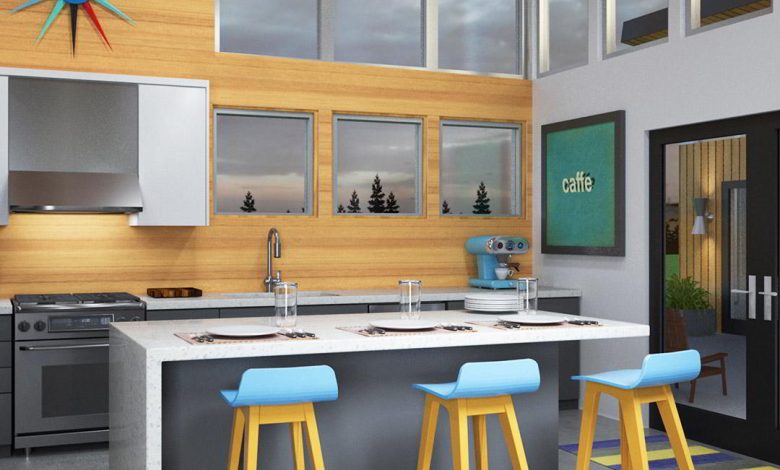
Lynda – 3ds Max and V-Ray: Residential Interior Materials Download Download 3ds Max and V-Ray: Residential Interior Materials video course…
Read More »Vray Tutorials
![Vray tutorial for beginners 2025 [3ds max, sketchup, maya]](https://3dmaxfarsi.com/wp-content/uploads/2025/02/Vray-Tutorials.webp)
V-Ray is a powerful rendering engine used in various 3D software like 3ds Max, Maya, SketchUp, Rhino, and more. It’s widely used for creating photorealistic images and animations. Below is a step-by-step guide to help you get started with V-Ray, along with some tips and resources for learning. one of the most functional plugins for 3ds max that has just released its usable version of 3ds max. With V-Ray Next you don’t have to know much about how a Ray Ray rendering engine works, you can render beautiful scenes. By installing Vray various components and elements are added to the Max environment. Vray lights, its geometric objects, materials and textures, camera, shading and most importantly its render header allow you to control all parameters. Provides the scene.
Getting Started with V-Ray
Install V-Ray:
- Download and install V-Ray for your 3D software (e.g., 3ds Max, Maya, SketchUp).
- Make sure your software and V-Ray version are compatible.
Set Up Your Scene:
- Model your scene in your 3D software.
- Apply basic materials and lighting to your objects.
Enable V-Ray as the Render Engine:
- In your 3D software, go to the render settings and select V-Ray as the render engine.
Basic V-Ray Settings:
- Open the V-Ray settings panel (usually called “V-Ray Asset Editor” or “Render Settings”).
- Start with default settings for beginners.
Key Features to Learn
Lighting:
- Use V-Ray lights (e.g., rectangle lights, dome lights, IES lights).
- Experiment with HDRI maps for realistic environment lighting.
Materials:
- Use the V-Ray Material (VRayMtl) for realistic surfaces.
- Learn to create materials like glass, metal, wood, and fabric.
Global Illumination (GI):
- Enable GI in the render settings for realistic light bounces.
- Use Irradiance Map and Light Cache for faster rendering.
Camera Settings:
- Use the V-Ray Physical Camera to control exposure, depth of field, and motion blur.
Rendering:
- Adjust render output resolution and quality settings.
- Use V-Ray Frame Buffer for post-processing.
Step-by-Step Tutorial for Beginners
1. Setting Up a Simple Scene
- Create a basic scene with a few objects (e.g., a table, chair, and a vase).
- Add a V-Ray light (e.g., a rectangle light) to illuminate the scene.
2. Applying Materials
- Open the V-Ray Material Editor.
- Create a VRayMtl for the table (e.g., wood texture).
- Adjust reflection and glossiness for a realistic look.
3. Adding a HDRI Environment
- Add a V-Ray Dome Light.
- Load an HDRI map into the Dome Light for realistic environment lighting.
4. Rendering the Scene
- Set up the V-Ray Physical Camera.
- Adjust camera settings like f-stop, shutter speed, and ISO.
- Render the scene and check the results in the V-Ray Frame Buffer.
Advanced Techniques
Displacement Maps:
- Use displacement maps for detailed surfaces like bricks or fabrics.
Caustics:
- Enable caustics for realistic light refraction (e.g., glass or water).
V-Ray Proxy:
- Use V-Ray Proxy for high-poly models to optimize memory usage.
Post-Processing:
- Use the V-Ray Frame Buffer to adjust exposure, color balance, and more.
Resources for Learning V-Ray
Official V-Ray Documentation: Chaos Group Help Center
YouTube Tutorials:
- Search for channels like “The Rendering Essentials,” “V-Ray Official,” or “Grant Warwick.”
Online Courses:
- Platforms like Udemy, Pluralsight, and CG Spectrum offer V-Ray courses.
Forums and Communities:
- Join forums like Chaos Group Forum, CGSociety, or Reddit’s r/vray.
Tips for Better Renders
- Start with simple scenes and gradually add complexity.
- Use reference images for realistic lighting and materials.
- Optimize render settings to balance quality and speed.
- Experiment with different lighting setups and materials.
By practicing regularly and exploring advanced features, you’ll master V-Ray and create stunning photorealistic renders!
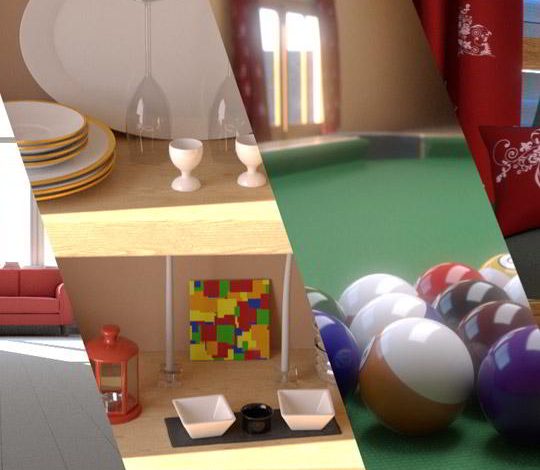
Lynda – V-Ray 3.0 for 3ds Max Essential Training Download On This page you can download V-Ray 3.0 for 3ds…
Read More »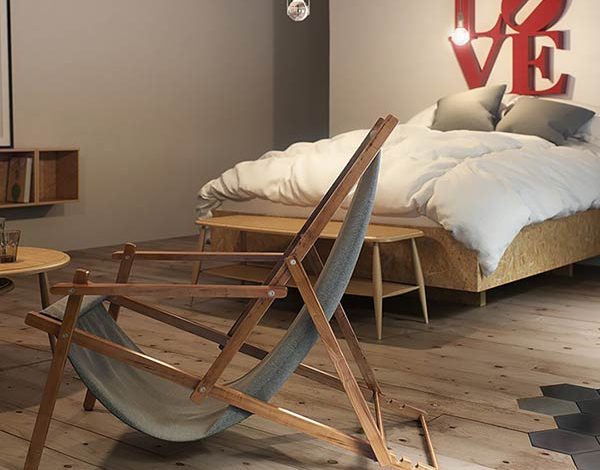
Rendering Realistic Interiors in 3ds Max and V-Ray download On This page you can buy and download Rendering Realistic Interiors…
Read More »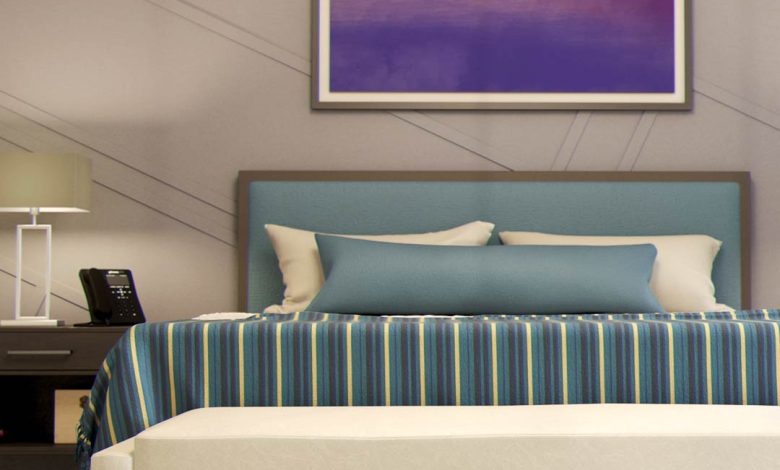
Lynda – 3ds Max and V-Ray: Arch Viz Detailing Techniques On This page you can download 3ds Max and V-Ray:…
Read More »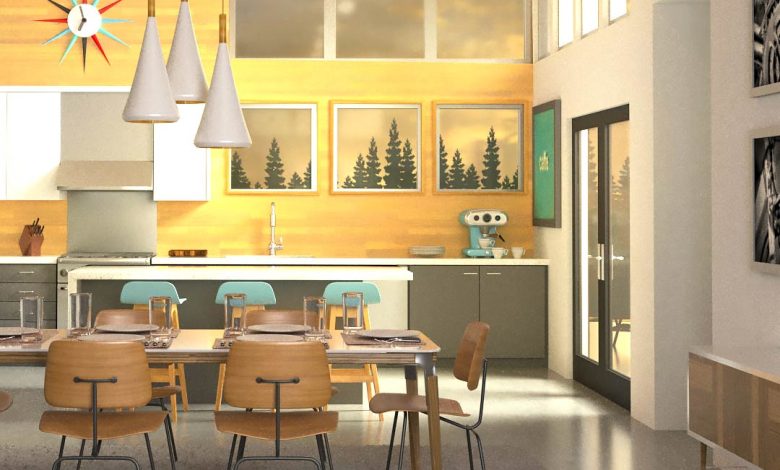
Lynda – 3ds Max and V-Ray: Interior Lighting and Rendering On This page you can download 3ds Max and V-Ray:…
Read More »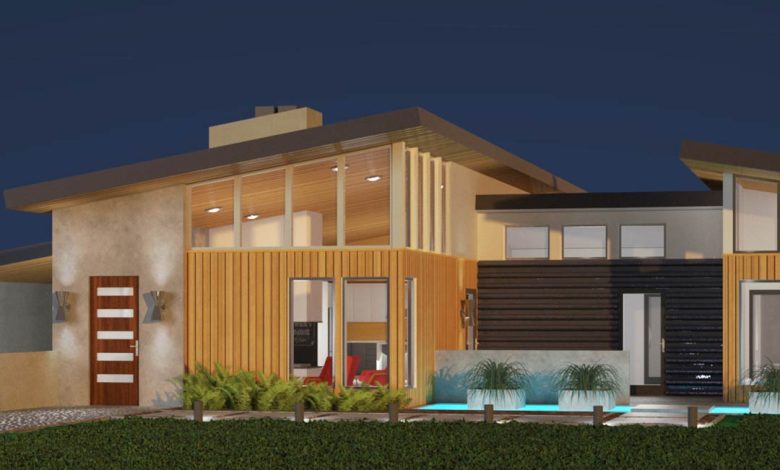
Lynda – 3ds Max and V-Ray: Exterior Lighting and Rendering (November 2019) On This page you can download 3ds Max…
Read More »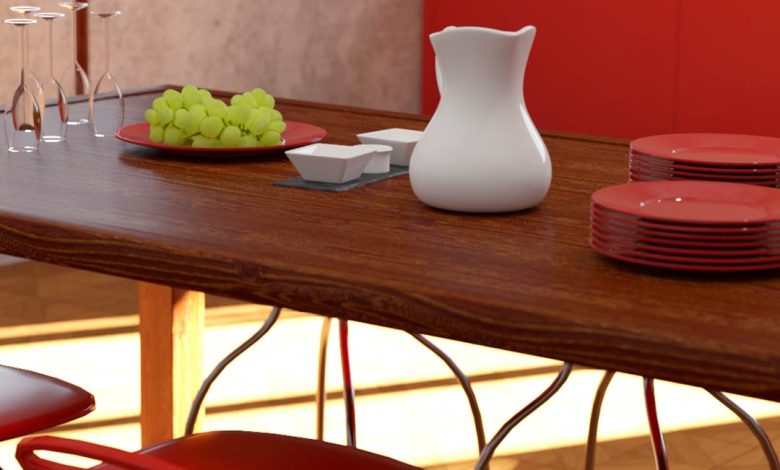
Lynda – V-Ray Next: Unreal Engine Rendering V-Ray Next: Unreal Engine Rendering Topics include: On This page you can download…
Read More »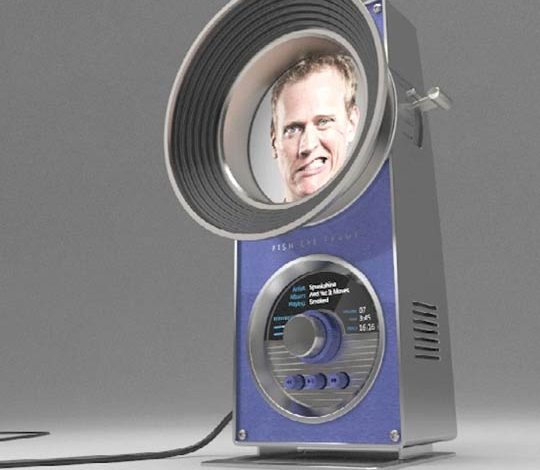
lynda Rhino: Animation with Bongo On This page you can download Rhino: Animation with Bongo video course from Lynda with…
Read More »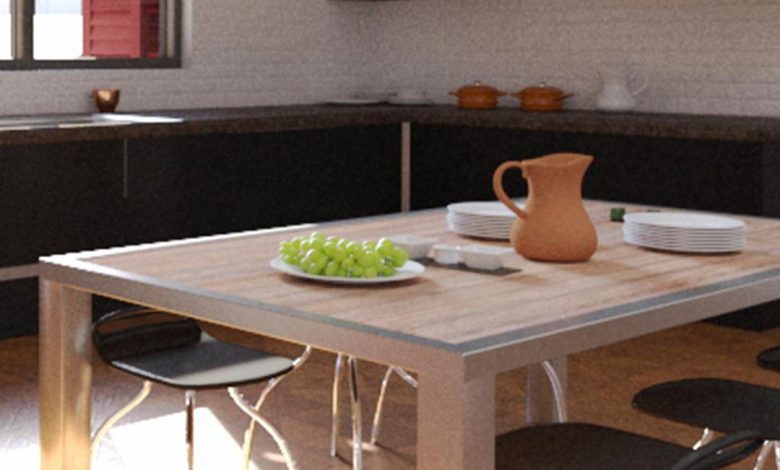
Lynda – SketchUp: Rendering with V-Ray Next Download Download SketchUp: Rendering with V-Ray Next, video course from Lynda with High…
Read More »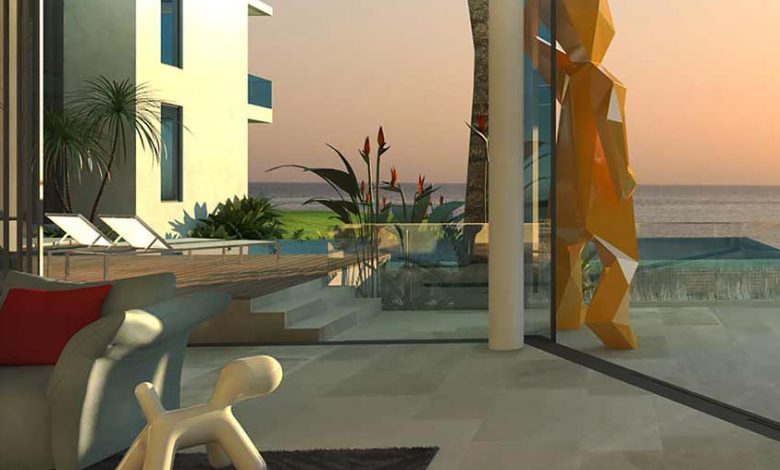
Download Rendering Impressive Architectural Interiors in 3ds Max and V-Ray in This premium tutorial , (Rendering Impressive Architectural Interiors in…
Read More »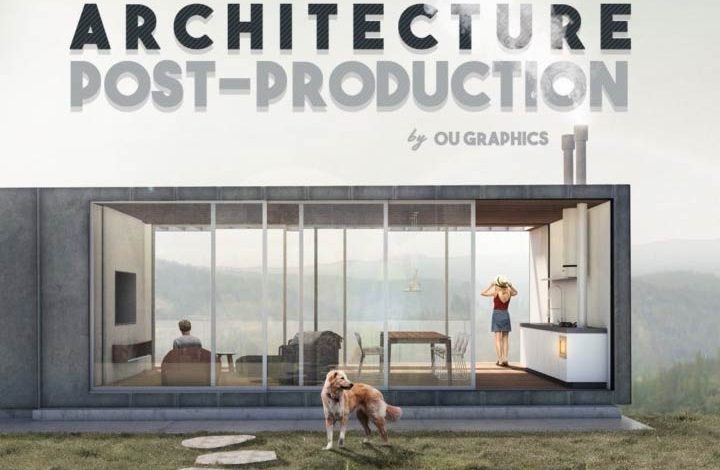
Udemy – Architecture Post-production in Photoshop Download On This page you can buy and download Architecture Post-production in Photoshop video…
Read More »